A single uncompressed 1080p frame with full color detail weighs 6.22 MB. Throw away three quarters of the color information and it drops to 3.11 MB, with almost nobody able to tell the difference on normal footage.
That trade is chroma subsampling, and it’s running on nearly every video you’ve watched this year.
It’s also one of the quietest sources of bugs in a video pipeline. Pick the wrong pixel format in an FFmpeg command and your file plays fine on your laptop, then fails silently on an iPhone. Feed a 4:2:0 master into a green screen key and the edges fall apart.
What Is Chroma Subsampling?
Chroma subsampling is a compression technique that stores color information at a lower resolution than brightness information, cutting video data by 33% to 58% with little visible quality loss.
It works because human vision isn’t balanced. Your retina packs roughly 20 times more rod cells, which handle brightness, than the cone cells that handle color.
You can spot a fine dark line against a light background instantly. You’re far worse at spotting fine color detail at the same scale.
Video encoders take advantage of that gap. Before compression, a frame gets converted from RGB into a color space that separates the two signals:
- Luma (Y) carries brightness, the black-and-white version of the image
- Chroma (Cb) carries the blue-difference color signal
- Chroma (Cr) carries the red-difference color signal
Once brightness and color live in separate channels, an encoder can keep every luma sample and throw away most of the chroma samples. The luminance detail that your eye actually tracks stays fully intact.
This is different from the compression a video codec applies afterward. Chroma subsampling happens first, at the pixel format level, and it’s lossy in a way no later step can undo. Once those chroma samples are gone, they’re gone.
The technique isn’t new. It was developed in the 1950s by Alda Bedford at RCA so color television broadcasts could fit alongside existing black-and-white signals, and it later became part of the NTSC standard, according to Wikipedia.
How the J:a:b Notation Works
The three-number format confuses almost everyone the first time. It isn’t a ratio of red to green to blue, and it isn’t a percentage.
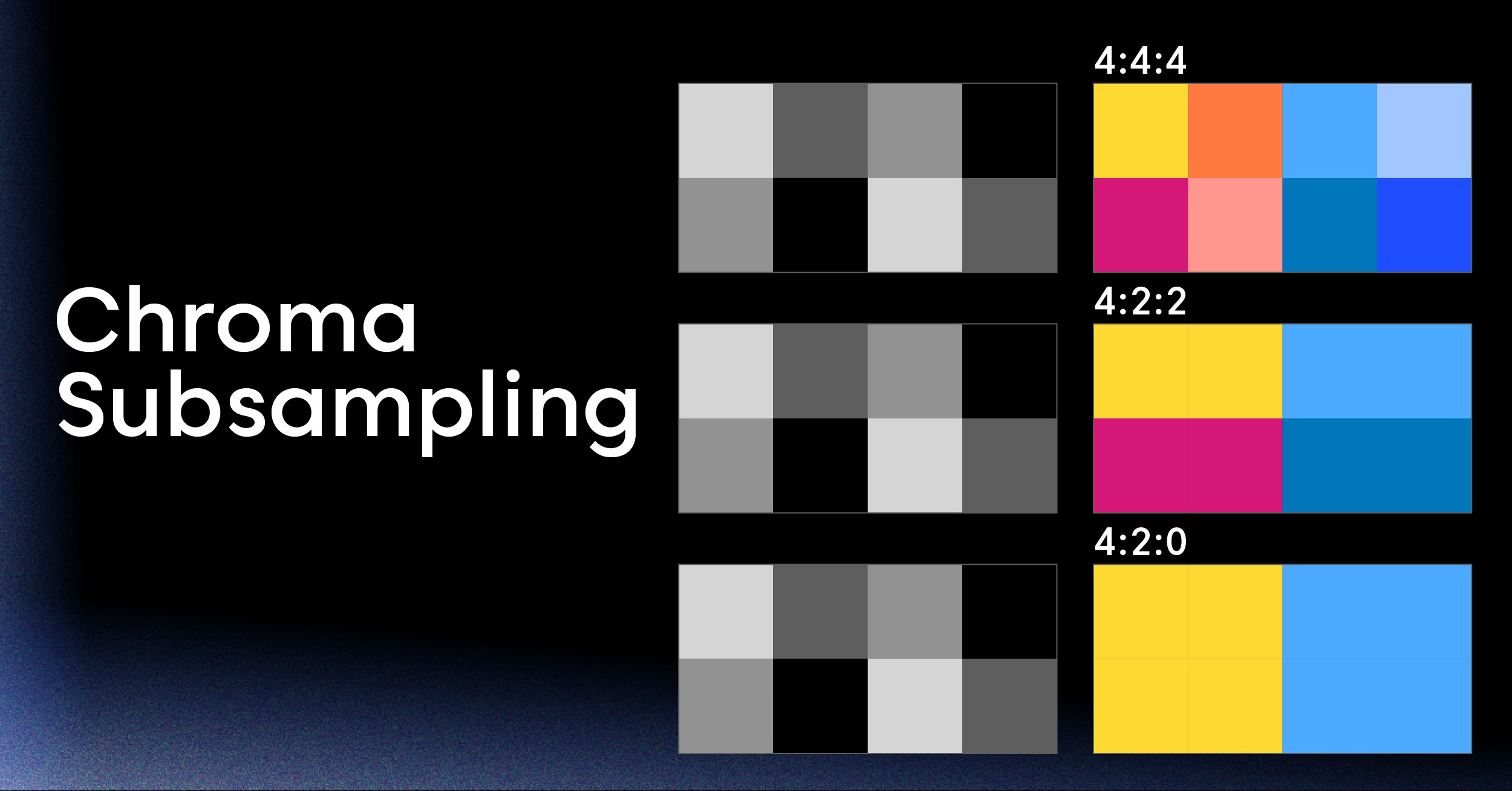
J:a:b describes sampling inside a conceptual block of pixels that’s J pixels wide and 2 pixels tall:
- J is the width of the reference block. It’s almost always 4.
- a is how many chroma samples appear in the top row of that block.
- b is how many chroma samples change between the top row and the bottom row.
That third number trips people up. b isn’t the count of chroma samples in row two, it’s the count of new ones.
When b is 0, the bottom row reuses the chroma values from the top row instead of storing its own.
Run 4:2:0 through that:
- 4 pixels wide, 2 rows tall, so 8 luma samples total
- 2 chroma samples in the top row, one per pair of pixels
- 0 new chroma samples in the bottom row, so it copies the top row’s values
Result: 8 luma samples and 2 chroma pairs for 8 pixels. Color resolution is halved horizontally and vertically, which is a quarter of the color data of 4:4:4.
Now 4:2:2:
- 8 luma samples
- 2 chroma samples in the top row
- 2 chroma samples that change in the bottom row, so each row gets its own
Color is halved horizontally but full vertically. Half the color data of 4:4:4.
And 4:4:4:
- 4 chroma samples in the top row, one per pixel
- 4 changing samples in the bottom row
Every pixel keeps its own color. No subsampling at all.
You’ll sometimes see a fourth number, as in 4:4:4:4. That last digit is an alpha or key channel, not chroma.
How Chroma Subsampling Works, Step by Step
Here’s what actually happens to a frame between a camera sensor and an HLS segment.
1. Capture in RGB. The sensor produces red, green, and blue values per pixel. At 8 bits per channel that’s 24 bits per pixel, with no way to separate brightness from color.
2. Convert to YCbCr. A matrix transform splits the signal into one luma channel and two chroma channels. The matrix depends on the color standard: BT.709 for HD, BT.601 for standard definition, BT.2020 for HDR video and wide gamut. Use the wrong matrix and colors shift before subsampling even starts.
3. Filter the chroma channels. Naively dropping every other chroma sample causes aliasing on sharp color edges. Good encoders low-pass filter the chroma planes first, then decimate. Cheap ones skip the filter, which is one reason two encoders at identical settings can produce visibly different edges.
4. Decimate to the target format. The Cb and Cr planes get resized down. For 4:2:0, both drop to half width and half height, so each chroma sample now covers a 2×2 block of pixels.
5. Hand off to the codec. The subsampled planes go into the encoder as a pixel format like yuv420p. From here, video encoding does its own work with motion estimation, transforms, and quantization on top of the already-reduced data.
6. Reconstruct on playback. The decoder upsamples chroma back to full resolution by interpolating between stored samples, then converts back to RGB for the display. The interpolation is a guess, which is exactly where artifacts come from.
Chroma Subsampling Formats Compared
Six schemes show up in practice. Most video you’ll ever handle uses two of them.
4:4:4 (No Subsampling)
Every pixel keeps its own luma and chroma values. At 8 bits, that’s 24 bits per pixel and a 1080p frame of 6.22 MB.
4:4:4 chroma subsampling is really the absence of it. You’ll find it in:
- Post-production formats like ProRes 4444
- Screen recordings and remote desktop streams, where text sharpness matters
- Computer-generated graphics and animation masters
- Your desktop’s output to a monitor over DisplayPort, when bandwidth allows
Nobody streams 4:4:4 to consumers. The bandwidth cost is real and the visual payoff on camera-shot footage is close to nothing.
4:2:2 (Half Horizontal Chroma)
Chroma is halved horizontally and kept at full vertical resolution. That’s 16 bits per pixel and a 1080p frame of 4.15 MB, a 33% cut against 4:4:4.
4:2:2 chroma subsampling is the broadcast and acquisition standard. Digital Betacam, DVCPRO HD, ProRes 422, and SDI feeds all use it. Professional cameras advertise “10-bit 4:2:2 internal recording” because that’s the format colorists and VFX artists want to receive.
The reason is headroom. Full vertical chroma resolution survives color grading, keying, and repeated re-encoding far better than 4:2:0 does. As an intermediate format it’s the sweet spot.
4:2:0 (Half Horizontal and Vertical Chroma)
Chroma is halved both horizontally and vertically. Each chroma sample pair covers a 2×2 block of four pixels. That’s 12 bits per pixel and a 1080p frame of 3.11 MB, half the data of 4:4:4.
4:2:0 chroma subsampling is what the internet runs on. H.264 and HEVC baseline profiles, MPEG-2 on DVD, Blu-ray, YouTube, Netflix, every HLS and DASH stream you’ve watched: all 4:2:0. Most JPEG encoders default to it too.
If someone says “chroma subsampling” without a number, they mean 4:2:0.
4:1:1 (Quarter Horizontal Chroma)
Chroma is quartered horizontally and kept at full vertical resolution. Same 12 bits per pixel as 4:2:0, but the loss is distributed differently.
You’ll only meet 4:1:1 in DV-era formats: DV, DVCAM, and DVCPRO in NTSC regions. It’s a legacy format. Vertical color edges look noticeably worse than in 4:2:0, which is why nothing modern uses it.
4:4:0 and 4:1:0 (Rare Variants)
4:4:0 keeps full horizontal chroma and halves it vertically, giving 16 bits per pixel. It’s rare, appearing mainly as an intermediate in some interlaced workflows.
4:1:0 quarters chroma horizontally and halves it vertically, down to 10 bits per pixel, a 58% cut. It shows up in very low-bandwidth video conferencing and some surveillance systems, where color is nearly decorative.
Format Comparison Table
| Format | Chroma resolution | Bits/pixel (8-bit) | 1080p frame | vs 4:4:4 | Typical use |
|---|---|---|---|---|---|
| 4:4:4 | Full H, full V | 24 | 6.22 MB | Baseline | Post-production, screen capture, CGI |
| 4:2:2 | 1/2 H, full V | 16 | 4.15 MB | -33% | Broadcast, camera masters, ProRes 422 |
| 4:2:0 | 1/2 H, 1/2 V | 12 | 3.11 MB | -50% | Streaming, Blu-ray, JPEG, all consumer video |
| 4:1:1 | 1/4 H, full V | 12 | 3.11 MB | -50% | DV, DVCAM, DVCPRO (legacy) |
| 4:4:0 | Full H, 1/2 V | 16 | 4.15 MB | -33% | Rare interlaced intermediates |
| 4:1:0 | 1/4 H, 1/2 V | 10 | 2.59 MB | -58% | Low-bandwidth conferencing, surveillance |
Those frame sizes add up fast at speed. Raw 1080p60 in 4:2:0 runs about 1.49 Gbps before any codec touches it, and the same footage in 4:4:4 runs 2.99 Gbps.
That gap is why subsampling happens before compression rather than instead of it.
Chroma Siting: Why 4:2:0 Isn’t Just One Thing
Here’s the detail that causes color shifts nobody can explain.
When one chroma sample represents four pixels, where does that sample sit? Different standards answer differently:
- MPEG-2, H.264, and HEVC place the chroma sample horizontally aligned with the left luma column and vertically centered between the two rows. This is called left siting.
- JPEG and MPEG-1 place it in the center of the 2×2 block, offset half a pixel both ways.
- BT.2020 and BT.2100 content often uses top-left co-siting, where the chroma sample aligns exactly with the top-left luma sample.
Mix these up and you get a half-pixel color shift across the whole frame. It looks like a faint chromatic fringe on high-contrast edges, and it survives every downstream step.
The usual trigger is converting between JPEG-derived stills and MPEG video, or moving footage between tools that assume different defaults. Most transcoders handle siting metadata correctly. Most hand-rolled conversion scripts don’t.
Advantages of Chroma Subsampling
Immediate bandwidth reduction
Cutting 33% to 58% of the source data before the codec runs compounds through the whole pipeline. Lower ingest bandwidth, lower storage, lower CDN egress. On a video bitrate budget, that’s the cheapest win available.
Quality loss you mostly can’t see
On camera-shot footage with natural textures, the difference between 4:2:0 and 4:4:4 is close to invisible at normal viewing distances. Quality metrics agree: run VMAF on the same clip encoded both ways and the gap on live-action content is small enough to be a rounding error against what bitrate does.
Universal hardware decode support
Every phone, smart TV, streaming stick, and game console on the market has a hardware decoder built for 4:2:0. That’s no accident. It’s what the silicon was designed around, and it’s why 4:2:0 playback drains far less battery than a software fallback.
More bits left for the codec
Subsampling frees data budget the encoder can spend elsewhere. At a fixed bitrate, a 4:2:0 encode gets to allocate more bits to luma detail and motion than a 4:4:4 encode of the same clip. In practice you often get a better looking result at the same file size.
Smaller files across every format
The savings aren’t limited to video. JPEG uses chroma subsampling too, which is a large part of why photos compress as well as they do. Most encoders default to 4:2:0 or 4:2:2 for images without ever mentioning it.
Disadvantages and Artifacts
Color bleeds on sharp edges
Where a strong color meets a contrasting one, the shared chroma sample can’t represent both. Red text on a blue background gets a smeared boundary. This is the classic chroma subsampling artifact, and it’s most obvious on synthetic graphics with hard color transitions.
Small text goes blurry
Fine text on a colored background is the worst case. The luma channel keeps the letterforms crisp, but the color underneath is guessed from a quarter as many samples, so edges look soft and slightly fringed.
That’s why remote desktop and screen-share tools push for 4:4:4 when bandwidth allows, and why a chroma subsampling test image is usually a grid of thin colored lines.
Chroma keying falls apart
Green screen work needs precise color edges, and 4:2:0 destroys exactly the data a keyer relies on. Hair, motion blur, and semi-transparent edges produce jagged, blocky mattes. Shoot 4:2:2 or better if a key is anywhere in the plan.
Grading headroom disappears
Push color intensity or shift hues hard on 4:2:0 footage and the missing color resolution becomes visible as banding and blocking. Colorists want 4:2:2 10-bit minimum for the same reason photographers want raw files.
Generation loss stacks
Every subsample-upsample cycle is another lossy round trip. Decode 4:2:0, edit, re-encode to 4:2:0, and the errors compound. Keep intermediates at 4:2:2 or 4:4:4 and subsample once, at the final transcoding step.
Playback fails silently
Ship a 4:4:4 H.264 file and it plays perfectly in Chrome on your machine and shows a black screen on an iPhone. No error, no warning. This one costs more engineering hours than all the visual artifacts combined.
Codec and Profile Support
Chroma subsampling isn’t a free parameter. Each codec gates the formats it supports behind profiles, and hardware decoders usually implement only the lowest ones.
| Codec | 4:2:0 | 4:2:2 | 4:4:4 | Notes |
|---|---|---|---|---|
| H.264 / AVC | Baseline, Main, High, High 10 | High 4:2:2 | High 4:4:4 Predictive | Only High and below get hardware decode |
| HEVC / H.265 | Main, Main 10 | Main 4:2:2 10 | Main 4:4:4 | 4:2:2 and 4:4:4 live in Range Extensions |
| VP9 | Profile 0, Profile 2 | Profile 1, Profile 3 | Profile 1, Profile 3 | Profiles 0 and 2 have the broadest support |
| AV1 | Main | Professional | High | Main covers 8-bit and 10-bit 4:2:0 |
| ProRes | No | ProRes 422 family | ProRes 4444 | Intermediate codec, not for delivery |
| JPEG | Default | Common | Optional | Encoder setting, often exposed as quality |
The practical takeaway is narrow. If your video needs to play on phones, browsers, and TVs, you’re shipping 8-bit or 10-bit 4:2:0 and nothing else. Support beyond that is patchy, which is why MDN’s video codec guide tracks chroma support codec by codec.
That constraint applies whether you’re encoding with H.264 or HEVC, moving to AV1 for its efficiency gains, or using VP9 for WebM delivery. The codec changes. The 4:2:0 requirement doesn’t.
Theory is one thing. The practical value sits in setting the format correctly in a real pipeline, and catching it when it’s wrong.
How to Set Chroma Subsampling with FFmpeg
FFmpeg exposes chroma subsampling through pixel formats, not through a dedicated flag. The -pix_fmt option is what you’re reaching for.
Know your pixel formats
| Pixel format | Subsampling | Bit depth | Use |
|---|---|---|---|
yuv420p |
4:2:0 | 8-bit | Web and mobile delivery, the safe default |
yuv420p10le |
4:2:0 | 10-bit | HDR and high-quality streaming |
yuv422p |
4:2:2 | 8-bit | Broadcast intermediates |
yuv422p10le |
4:2:2 | 10-bit | Camera masters, grading |
yuv444p |
4:4:4 | 8-bit | Screen capture, graphics |
nv12 |
4:2:0 | 8-bit | Hardware encoder input, interleaved chroma |
p010le |
4:2:0 | 10-bit | Hardware 10-bit path |
Check what you have
Before changing anything, find out what the source actually is:
ffprobe -v error -select_streams v:0 \
  -show_entries stream=codec_name,profile,pix_fmt,color_range,color_space \
  -of default=noprint_wrappers=1 input.mov
That returns something like pix_fmt=yuv422p10le and profile=High 4:2:2. Now you know whether you’re dealing with a camera master or an already-delivered file.
Encode for delivery
Always set the pixel format explicitly. Never rely on the default:
ffmpeg -i input.mov \
  -c:v libx264 -profile:v high -pix_fmt yuv420p \
  -crf 20 -preset medium \
  -c:a aac -b:a 128k \
  output.mp4
The -pix_fmt yuv420p line is the one that matters. Without it, x264 inherits the source format, and a 4:2:2 or 4:4:4 source produces a file that fails on Safari, iOS, and most televisions. The FFmpeg documentation covers the full pixel format list, but for delivery you want this one.
Keep quality in an intermediate
When the file is going back into an edit or a grade, hold onto the chroma:
ffmpeg -i input.mov \
  -c:v libx264 -profile:v high422 -pix_fmt yuv422p10le \
  -crf 14 -preset slow \
  mezzanine.mp4
Improve the downsample quality
The default chroma scaler is fast rather than accurate. For sources with strong flat colors or text, better filtering is worth the extra time:
ffmpeg -i input.mov \
  -vf "scale=flags=full_chroma_int+accurate_rnd,format=yuv420p" \
  -c:v libx264 -crf 20 output.mp4
Verify the output
Confirm the encode did what you asked before it reaches a CDN:
ffprobe -v error -select_streams v:0 \
  -show_entries stream=pix_fmt,profile -of csv=p=0 output.mp4
Anything other than yuv420p in a delivery file deserves a second look. Adding that check to CI catches the problem before your users do.
Chroma Subsampling in a Streaming Pipeline
In a live or on-demand workflow, chroma subsampling shows up at three points.
At ingest. Whatever your encoder or camera sends arrives in some pixel format. A hardware video encoder pushing RTMP typically sends 4:2:0 already. An SDI feed or a ProRes upload arrives at 4:2:2. Your pipeline needs to handle both without assuming either.
At transcode. This is where normalization happens. Every rendition in your adaptive bitrate ladder should land on the same pixel format, and for delivery that means 4:2:0. Mixing formats across renditions causes visible color shifts when a player switches between them mid-stream, which is a genuinely confusing bug to chase.
At packaging. By the time you’re generating HLS playlists and segments, the subsampling decision is locked into the elementary stream. Nothing downstream can change it.
Hardware acceleration adds a wrinkle. GPU encoders including NVENC want nv12 or p010le input, which are 4:2:0 formats with interleaved chroma planes.
Feed one a yuv444p frame and it either rejects the input or converts it quietly, at a quality that varies by driver. That’s one of the software and hardware encoding tradeoffs, and it’s easy to miss.
This is a large part of why teams hand the transcode to a managed service.
LiveAPI’s video encoding API normalizes uploads and live inputs into web-safe 4:2:0 renditions, builds the ABR ladder, and outputs HLS that plays on phones, browsers, and OTT devices without anyone auditing pixel formats. Ingest arrives over RTMP, SRT, RTSP, or direct upload in whatever format the source produces, and the encoding layer handles the rest, up to 4K.
For teams already running their own transcoding API, the same rule applies: pin the output pixel format explicitly, at every rung of the ladder, and verify it in automation.
Which Chroma Subsampling Should You Use?
Match the format to where the file is going, not to what sounds highest quality.
Use 4:2:0 when:
– You’re delivering to browsers, phones, smart TVs, or OTT devices
– You’re building an ABR ladder for HLS or DASH
– You need hardware decode on the playback side
– The content is camera-shot footage rather than graphics
Use 4:2:2 when:
– The file is a camera master or a mezzanine headed back into an edit
– Color grading or VFX work is still ahead of it
– You’re feeding a broadcast chain or an SDI workflow
– The footage will be re-encoded more than once
Use 4:4:4 when:
– You’re capturing screen content, UI, or fine text
– The source is CGI, animation, or motion graphics
– Chroma keying is part of the workflow
– Bandwidth genuinely isn’t a constraint, as in local capture or a controlled network
If you’re picking a format for anything that ends up on the open internet, the answer is 4:2:0 in every practical case. Spend the effort you’d have spent on chroma resolution on a better bitrate ladder and a well-chosen keyframe interval instead. Those choices move quality metrics far more.
Chroma Subsampling FAQ
What does 4:2:0 chroma subsampling mean?
4:2:0 means color information is stored at half resolution horizontally and half vertically, so one pair of chroma samples covers each 2×2 block of pixels. Brightness stays at full resolution for every pixel. It cuts video data by 50% against 4:4:4 and is the format used by nearly all streaming, Blu-ray, and web video.
Is 4:2:0 chroma subsampling bad?
No, not for its intended use. On camera-shot footage at normal viewing distances, the difference against 4:4:4 is close to invisible. It becomes a problem in three specific cases: small text on colored backgrounds, chroma keying, and heavy color grading. For delivery to viewers, 4:2:0 is the correct choice.
What is the difference between 4:2:2 and 4:2:0?
Both halve color resolution horizontally. 4:2:2 keeps full vertical color resolution while 4:2:0 halves that too. 4:2:2 uses 16 bits per pixel against 12 for 4:2:0, a 33% larger file. Use 4:2:2 for camera masters and editing intermediates, and 4:2:0 for anything you deliver to viewers.
Does YouTube use chroma subsampling?
Yes. YouTube transcodes every upload to 4:2:0 regardless of what you send it. Uploading a 4:2:2 or 4:4:4 master is still worth doing, because a higher-quality source survives the transcode better, but the version viewers receive is always 4:2:0.
Can I disable chroma subsampling?
In an encode, yes: set the pixel format to yuv444p and use a codec profile that supports it, such as H.264 High 4:4:4 Predictive. The catch is playback. Most hardware decoders won’t touch a 4:4:4 stream, so the file may not play at all on phones or TVs. On a monitor connection, chroma subsampling is a display setting controlled by your GPU driver and the available HDMI or DisplayPort bandwidth.
Do still images use chroma subsampling?
Yes. JPEG applies chroma subsampling and most encoders default to 4:2:0 or 4:2:2, which is a large part of why JPEG files compress so well. PNG and other lossless formats don’t subsample. Modern formats like WebP and AVIF support multiple modes, with 4:2:0 as the common default.
How do I test for chroma subsampling?
Run ffprobe on the file and read the pix_fmt field: yuv420p is 4:2:0, yuv422p is 4:2:2, yuv444p is 4:4:4. For a display connection, a chroma subsampling test image with thin red and blue lines on contrasting backgrounds will look sharp at 4:4:4 and visibly fringed at 4:2:0.
Does chroma subsampling affect video quality metrics?
It affects them less than people expect. PSNR and SSIM are usually computed on the luma channel alone, so they barely register chroma loss at all. Perceptual metrics catch more of it, but on natural content the measured gap between 4:2:0 and 4:4:4 stays small compared to what changing bitrate does.
Does chroma subsampling matter for HDR?
More than for standard dynamic range. HDR content uses wider color gamuts and higher bit depths, so chroma errors have more room to become visible, particularly in bright, intense highlights. HDR delivery still uses 4:2:0, but at 10-bit rather than 8-bit, which recovers most of the precision that matters.
Getting Chroma Subsampling Right
Chroma subsampling is one of the highest-impact compression decisions in video, and one of the least visible. It cuts your data in half before a codec runs, using a shortcut in human vision that’s held up for seventy years.
The rules are short:
- Deliver in 4:2:0, and keep intermediates at 4:2:2 or better
- Set
-pix_fmtexplicitly on every encode, then verify it in CI - Watch chroma siting when converting between still image and video pipelines
- Keep pixel formats consistent across every rung of your ABR ladder, since mismatches produce color shifts that are painful to debug
If you’d rather not audit pixel formats across your whole delivery matrix at all, that’s a reasonable position. Try LiveAPI free and get RTMP and SRT ingest, automatic transcoding to web-safe renditions up to 4K, ABR ladders, HLS output, and a player that works everywhere, in a few lines of code.