Ever wondered how a live sports event streams flawlessly to millions of devices at once? Or how a movie on your phone instantly drops its quality when your Wi-Fi signal gets shaky, avoiding that dreaded buffering wheel? The answer, surprisingly, is a small but powerful text file: the M3U8 playlist.
It’s the unsung hero of modern video delivery. An M3U8 file isn’t actually a video file at all. Think of it more like a detailed recipe that tells a video player where to find small chunks of a video and the exact order to play them in. This simple text file is the central conductor for HTTP Live Streaming (HLS), the technology powering most of the video you watch online.
Your Introduction to M3U8 and HLS Streaming
Instead of trying to send one single, massive video file over the internet, HLS breaks the content down into small, digestible segments. The M3U8 file acts as the master guide, providing a list of these segments. This approach is a game-changer for a few key reasons:
- Rock-Solid Reliability: If one tiny segment fails to load, the player can just ask for it again without bringing the entire stream to a halt.
- Lightning-Fast Start Times: The player only needs to grab the first few seconds of video to get things rolling, which means you get to your content almost instantly.
- Adaptive Quality: This is the magic that lets the player seamlessly switch between different quality streams (like 1080p and 480p) depending on how good your internet connection is at that moment.
This whole segmented method is the secret sauce that makes HTTP Live Streaming so incredibly effective. To really get into the nuts and bolts, check out our comprehensive guide on what is HTTP Live Streaming.
From Winamp Playlists to Global Streaming
The M3U8 format has a surprisingly long history. It actually evolved from the old M3U playlist format that was a staple for desktop media players like Winamp back in the late 1990s. The original M3U format couldn’t handle non-Latin characters well, but M3U8 fixed that by requiring UTF-8 encoding—that’s literally what the “8” stands for. This small change guaranteed that metadata in any language would just work.
Apple officially adopted M3U8 for its HLS protocol back in 2009, and within a decade, it became the industry standard, supported by pretty much every device you can think of. Platforms like LiveAPI are built on this proven technology, standing on nearly two decades of standardization to deliver video reliably at a massive scale.
At its core, an M3U8 file is a simple manifest. It doesn’t contain a single frame of video or a single note of audio. Its job is purely logistical: to tell the player which piece of the puzzle comes next, ensuring the complete picture is assembled perfectly on the viewer’s screen.
This playlist-driven architecture is what allows platforms like LiveAPI to orchestrate complex video delivery with remarkable simplicity, guaranteeing a high-quality experience for every viewer, everywhere.
Dissecting the Anatomy of an M3U8 Playlist
Pop open an M3U8 file, and you might think you’ve stumbled upon some cryptic computer code. But it’s actually more like a recipe or a director’s script for your video player. It’s a simple, plain text file that doesn’t hold any video or audio itself. Instead, it gives the player a line-by-line set of instructions on where to find the media and how to play it back.
This tiny text file, often just a few kilobytes in size, is the engine behind HTTP Live Streaming (HLS). It’s what allows your device to seamlessly stream massive video files without a hitch. The relationship is simple: the playlist guides the player, and the player fetches the video.
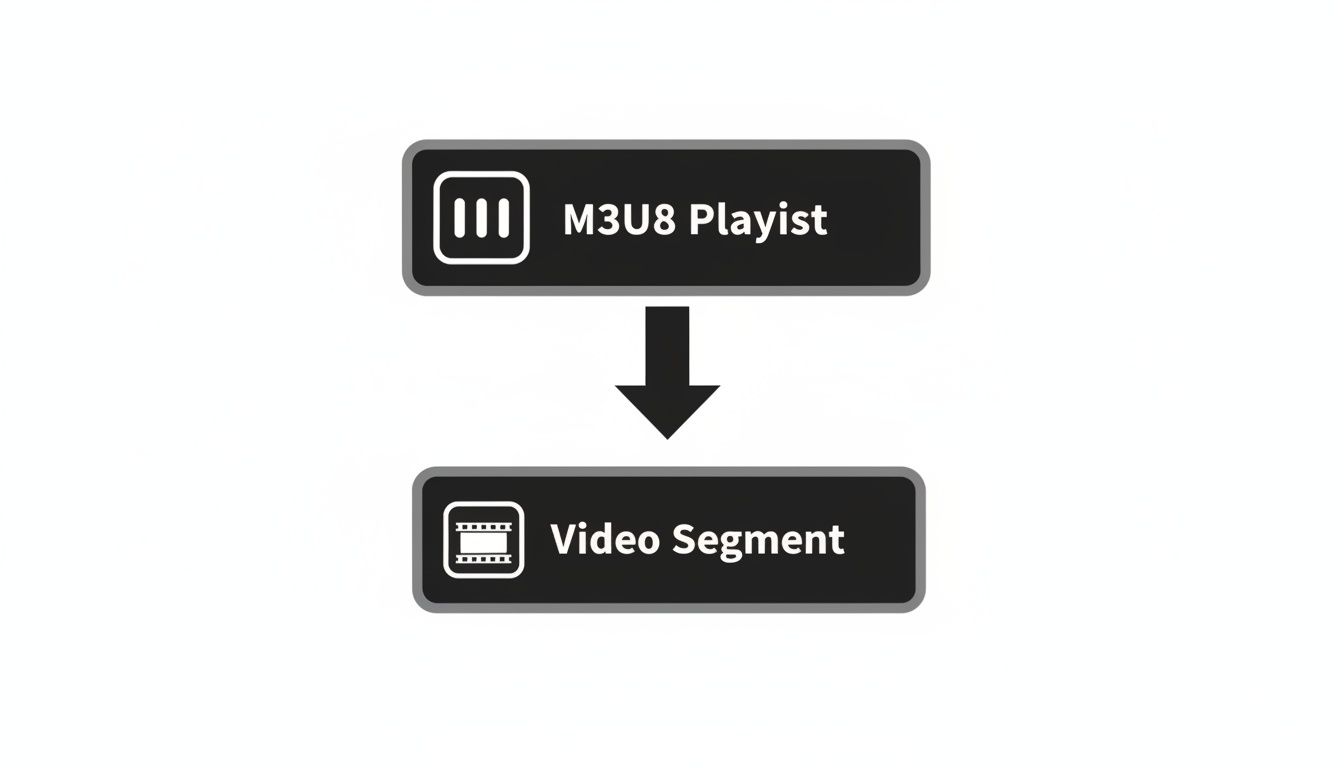
As you can see, the M3U8 file is just a manifest—a list of instructions—that points to the actual video chunks (or segments). To really get a feel for how it works, we need to learn its language, which is built on a foundation of tags.
The Core Building Blocks: M3U8 Tags
Every command inside an M3U8 playlist is a tag, and they all start with the #EXT prefix. Think of these as non-negotiable orders for the player. Some tags set the rules for the entire stream, while others apply only to the specific video segment that comes right after them.
To get started, here are a handful of essential tags you’ll find in almost every M3U8 playlist you encounter:
#EXTM3U: This is the very first line of any valid M3U8 file. It’s the “hello” that tells the player, “This is an HLS playlist. Get ready to follow the rules.” It absolutely must be there.#EXT-X-TARGETDURATION: This tag defines the maximum duration, in seconds, of any single media segment in the playlist. It gives the player a heads-up on how long each piece should be, which is critical for managing its buffer and ensuring smooth playback.#EXTINF: You’ll find this tag right before each media segment’s URL. It specifies the exact duration of that particular segment, often followed by a comma and an optional title for the clip.
These tags, when combined with the URLs pointing to the video segments, create a complete, playable manifest.
An M3U8 playlist is fundamentally a conversation between the server and the video player. Each tag is a command, and each segment URL is a resource to be fetched, creating a seamless playback experience from a collection of small, independent files.
A Simple VOD Playlist Example
Let’s see these tags in the wild. Here’s a basic M3U8 playlist for a short video-on-demand (VOD) clip. In this scenario, a complete video has been chopped into three 10-second segments.
#EXTM3U #EXT-X-VERSION:3 #EXT-X-TARGETDURATION:10 #EXTINF:10.0, segment1.ts #EXTINF:10.0, segment2.ts #EXTINF:10.0, segment3.ts #EXT-X-ENDLIST
So, what is the player seeing here? It’s reading it like this: “Okay, this is a version 3 HLS playlist. I should expect video segments to be no longer than 10 seconds. First, I’ll play segment1.ts (which is 10 seconds long). Then I’ll grab segment2.ts (also 10 seconds), and finish with segment3.ts.”
The #EXT-X-ENDLIST tag at the bottom is the final instruction. It tells the player that the stream is over and there are no more segments to fetch.
This tiny file can orchestrate gigabytes of video. And when you get into more advanced setups like adaptive bitrate streaming, a master playlist can reference multiple versions of the same video, which has been shown to reduce buffering by 30-50% on shaky network connections.
Unlocking a Better User Experience with Adaptive Bitrate Streaming
So far, we’ve looked at M3U8 playlists as a simple, sequential guide for a single video stream. But the real magic happens when we move beyond a one-size-fits-all approach and into the world of Adaptive Bitrate Streaming (ABR). This is the unsung hero that saves your viewers from the dreaded buffering wheel.
Instead of trying to force a huge, high-quality video file down a weak connection, ABR gives the video player a “menu” of different video versions, each called a rendition. Every rendition is encoded at a different quality (resolution) and bitrate (the amount of data sent per second). The player can then intelligently switch between these options on the fly, depending on the viewer’s real-time network conditions.
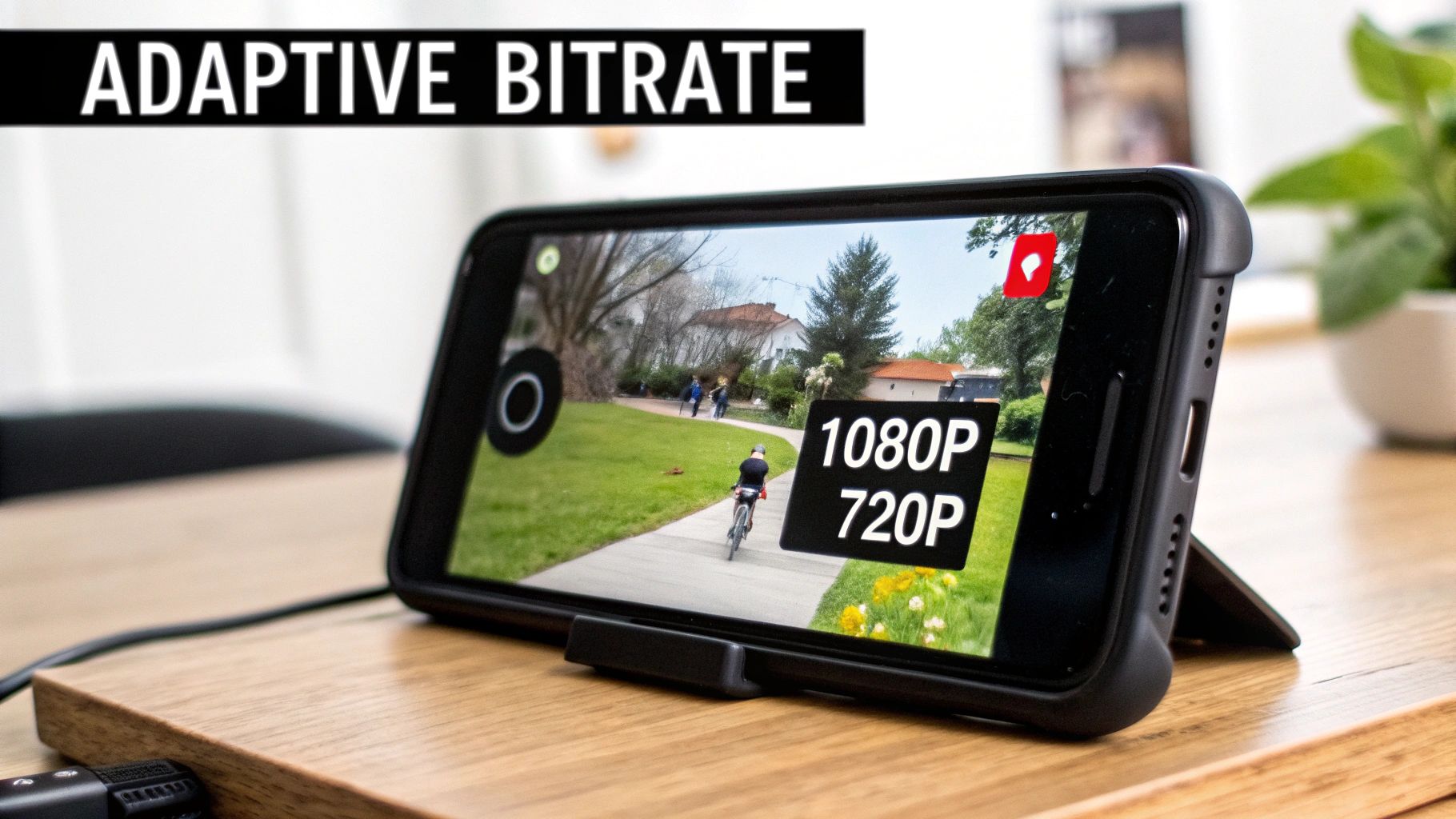
What does this mean in practice? Someone watching on a solid fiber connection gets a brilliant, crisp 4K picture. Meanwhile, a user on a spotty 4G connection automatically gets a lower-quality stream that plays smoothly without constant interruptions. This seamless adjustment is the secret to delivering a professional, buffer-free stream to every single person.
The Master Playlist: The Key to ABR
This whole adaptive system is orchestrated by a special M3U8 file called a Master Playlist. Unlike the Media Playlists we’ve covered, which point directly to video segments, a Master Playlist points to other Media Playlists. Think of it as the top-level directory that shows the player all the available quality options.
When a stream starts, the player first downloads this Master Playlist to see the menu. From there, it picks the best stream to start with, grabs that stream’s specific Media Playlist, and starts fetching the video segments inside.
The Master M3U8 Playlist is the central nervous system of adaptive streaming. It doesn’t just list files; it provides the intelligence for the player to make smart decisions, ensuring the best possible viewing experience under constantly changing network conditions.
This layered structure is what makes HLS so incredibly flexible and resilient. For a closer look at how this technology works, our detailed article on adaptive bitrate streaming dives much deeper into the mechanics and benefits.
An Annotated Master Playlist Example
Let’s break down how a Master Playlist actually uses tags to define these different quality levels. The most important tag you’ll see is #EXT-X-STREAM-INF, which describes a single “variant” stream.
#EXTM3U #EXT-X-STREAM-INF:BANDWIDTH=800000,RESOLUTION=640×360,CODECS=”avc1.42c01e,mp4a.40.2″ low/playlist.m3u8
#EXT-X-STREAM-INF:BANDWIDTH=1500000,RESOLUTION=1280×720,CODECS=”avc1.4d401f,mp4a.40.2″ medium/playlist.m3u8
#EXT-X-STREAM-INF:BANDWIDTH=2800000,RESOLUTION=1920×1080,CODECS=”avc1.640028,mp4a.40.2″ high/playlist.m3u8
Here’s a quick rundown of what the player learns from this file:
#EXT-X-STREAM-INF: This tag is the signal that a new quality option is available.BANDWIDTH: This is the peak bitrate for the stream, measured in bits per second. It’s the main factor the player uses to decide which stream it can handle.RESOLUTION: This tells the player the video’s dimensions, like1920x1080for Full HD.CODECS: This attribute specifies the video and audio codecs, making sure the player can actually decode the content.
Right after each #EXT-X-STREAM-INF tag, you see the URL to its Media Playlist (e.g., high/playlist.m3u8). The player now has a complete roadmap to deliver the best possible video quality your connection can support at any given moment.
How to Secure Your Streams with M3U8 and HLS Encryption
Let’s talk about security. If you’re streaming premium subscription content or sensitive corporate training, just getting the video to play isn’t enough. You need to protect it. Thankfully, HLS and the M3U8 format have a straightforward and powerful way to lock down your streams using encryption.
This isn’t some complex, software-heavy process. It’s all handled by adding a simple instruction right inside your M3U8 playlist. By encrypting each video segment individually, you make it impossible for someone to just download the files and watch your content without permission.
Implementing AES-128 Encryption in Your M3U8 Playlist
The go-to method for securing HLS streams is AES-128 encryption. It’s an industry-standard algorithm that scrambles every single .ts segment of your video. To unscramble and play them, the video player needs a specific 16-byte key. The real elegance of this system is how the M3U8 file manages that key exchange.
The magic comes down to one special tag: #EXT-X-KEY. When you add this to your playlist, it tells the player exactly how to get the decryption key.
A standard #EXT-X-KEY tag has a few important parts:
- METHOD: This specifies the encryption method. For HLS, it’s almost always
AES-128. - URI: This is the URL where the player can securely fetch the decryption key.
- IV (Initialization Vector): This is an optional but highly recommended parameter. It adds an extra layer of security by making sure each segment’s encryption is unique.
When a player sees this tag in a playlist, it knows the video segments that follow are encrypted. So, before it can play a segment, it first has to make a secure request to that key URL, grab the key, and then use it to decrypt the video data.
This segment-level encryption means that even if someone manages to download your video files, all they have is a bunch of scrambled, unplayable data. That one simple line in a text file creates a very effective barrier against content theft.
An Example of an Encrypted Playlist
So what does this look like in a real M3U8 file? The #EXT-X-KEY tag is placed right before the list of video segments it applies to. For things like long live events, you can even update it mid-stream to “rotate” the keys for an extra security boost.
#EXTM3U #EXT-X-VERSION:3 #EXT-X-TARGETDURATION:10 #EXT-X-KEY:METHOD=AES-128,URI=”https://keys.yourserver.com/video-key”
#EXTINF:10.0, encrypted_segment1.ts #EXTINF:10.0, encrypted_segment2.ts #EXTINF:10.0, encrypted_segment3.ts
#EXT-X-ENDLIST
In this example, the player will fetch the key from the URI before it even tries to play encrypted_segment1.ts. It will then use that same key for all the following segments until it either hits the end of the playlist or finds a new #EXT-X-KEY tag.
While AES-128 provides solid protection, it’s often just one piece of a bigger security puzzle. For studio-grade content, you’ll want to look into more advanced solutions. To see how this fits into a broader framework, you can learn more about DRM for video and how it offers an even higher level of security for your most valuable content. This simple approach effectively turns your M3U8 playlist into a gatekeeper, making sure only authorized viewers can unlock what you’re streaming.
Getting M3U8 Streams to Actually Work in the Real World
Knowing how an M3U8 playlist is structured is one thing. Making it play smoothly for every user is a whole different ballgame. This is where theory meets reality, and developers often get stuck chasing down frustrating playback errors.
More often than not, the problem isn’t with the M3U8 file itself. It’s about how that file—and all the video segments it points to—is delivered from the server to the browser. Get these server-side details wrong, and you’ll leave your audience staring at a spinning wheel or a black screen.
Let’s break down the three most common roadblocks that pop up in a production environment and how to clear them.
Why Your Server Needs to Speak the Right Language: MIME Types
Think of it like this: you hand someone a file, but you don’t tell them whether to open it in a text editor, a video player, or a spreadsheet program. That’s essentially what happens when your web server sends an M3U8 file with the wrong MIME type. A MIME type is just a simple header that tells the browser, “Hey, this is a video playlist, handle it accordingly.”
For HLS playlists, the official, non-negotiable MIME type is application/vnd.apple.mpegurl.
If your server sends it with a generic text/plain header, the browser won’t have a clue what to do with it. Most video players will just throw up their hands and refuse to load the stream. Fixing this is usually a quick configuration change on your web server (like Nginx or Apache) or cloud storage bucket (like Amazon S3) to associate the .m3u8 file extension with the correct MIME type.
Untangling the Web of CORS Errors
If you’ve ever seen a CORS (Cross-Origin Resource Sharing) error in your browser’s developer console, you know how confusing it can be. This is a security feature built into every modern browser, and it’s a major sticking point for video streaming.
CORS errors happen when your M3U8 playlist lives on one domain (like your-awesome-site.com) but the actual video segments are hosted somewhere else, like on a CDN (cdn.your-provider.com). By default, the browser blocks this kind of request, assuming it might be malicious. To your video player, it just looks like the video chunks are missing, even when the URLs in the playlist are perfect.
CORS isn’t a bug; it’s the web’s immune system doing its job. The trick isn’t to fight it but to tell it everything is okay. You do this by adding an
Access-Control-Allow-Originheader to the server that’s hosting your video segments.
This header is your way of giving the browser permission to load resources from your CDN. Here’s how you can set it up:
Access-Control-Allow-Origin: *: The wide-open approach. This allows any website to request the files, which is fine for public videos but not ideal if you want to prevent others from hotlinking your content.Access-Control-Allow-Origin: https://www.your-awesome-site.com: The secure way. This locks it down, telling the browser to only accept requests that come directly from your website.
You Can’t Go Global Without a CDN
Okay, so your playlist is valid, your MIME type is correct, and your CORS headers are in place. You’re all set, right? Not if you want to reach a global audience. Hosting your video on a single server in one corner of the world is a recipe for buffering and lag for anyone who isn’t right next door.
This is where a Content Delivery Network (CDN) becomes absolutely essential.
A CDN is a vast, distributed network of servers strategically placed around the globe. It takes a copy of your M3U8 files and video segments and caches them in locations close to your viewers. When someone in London hits play, they get the video from a server in Europe, not one all the way over in California.
The result is a dramatic improvement in performance across the board:
- Video starts playing much faster.
- Buffering is drastically reduced.
- Every viewer gets a reliable, high-quality stream.
Services like LiveAPI are built to work hand-in-hand with top-tier CDNs like Akamai and Cloudflare, taking care of this complex distribution process for you. It’s the final piece of the puzzle for ensuring your M3U8 streams are not just built correctly, but delivered flawlessly at scale.
When things go wrong, it’s easy to get lost in the weeds. This checklist can help you quickly pinpoint where the issue might be, saving you from hours of frustrating debugging.
M3U8 Delivery Troubleshooting Checklist
| Symptom | Potential Cause | Solution to Check |
|---|---|---|
| Video player shows an error and won’t load the stream. | Incorrect MIME Type: The server is sending the M3U8 file as text/plain or another generic type. |
Verify the server response header for the M3U8 file is application/vnd.apple.mpegurl. |
| Playlist loads, but video segments fail with a console error. | CORS Policy: The browser is blocking requests from the player’s domain to the segment’s domain (CDN). | Check that the Access-Control-Allow-Origin header is present on the server hosting the segments. |
| Video buffers constantly or takes a long time to start. | High Latency: The viewer is geographically far from the origin server where the video is hosted. | Confirm that a CDN is properly configured and that requests are hitting a nearby edge server. |
| Segments return a 404 Not Found error. | Incorrect Path: The URLs in the M3U8 playlist are relative or absolute paths that don’t correctly point to the media files. | Double-check that the segment URLs are valid and accessible. Test one directly in your browser. |
| The player gets stuck on the first frame or buffers after one segment. | Invalid Segment or Playlist Update: The next segment in the sequence is missing, corrupted, or the live playlist isn’t updating. | For live streams, ensure the M3U8 file is being refreshed correctly. For VOD, check if all segments are present. |
Running through these common checks usually resolves 90% of M3U8 delivery issues. By ensuring your server configuration is as solid as your playlist structure, you can provide a seamless streaming experience for your audience.
Making M3U8 Workflows Easier with the LiveAPI Platform
Knowing the ins and outs of M3U8 tags, encryption, and delivery is one thing. Actually putting it all into practice in a real-world production environment is another beast entirely. Juggling video transcoding, file segmentation, manifest generation, and CDN configurations can easily become a full-time headache for any dev team. This is precisely where a dedicated video infrastructure platform comes in handy.
A platform like LiveAPI is built to handle all that heavy lifting for you. Instead of wrestling with FFmpeg commands or tweaking server headers, you can kick off the entire HLS workflow with a single API call. It lets you stop worrying about the plumbing and get back to building a great experience for your users.
From a Single Video File to a Global Stream
Let’s get practical. You have a source video file, and you need to turn it into a secure, adaptive M3U8 stream that works flawlessly for viewers anywhere on the globe. Doing this by hand involves a ton of steps. With LiveAPI, you just make one request.
When you send your video to the API, a whole chain of critical tasks happens automatically behind the scenes:
- Smart Transcoding: The platform analyzes your source video and creates multiple versions (like 1080p, 720p, and 480p) perfectly optimized for adaptive bitrate streaming.
- Precise Segmentation: Each of those versions is then chopped up into small, cacheable media segments, all ready for delivery.
- Playlist Generation: LiveAPI crafts a perfect Master Playlist that points to all the different quality levels, along with the individual Media Playlists for each one.
- Global Distribution: Finally, it pushes all the playlists and video segments to a Content Delivery Network (CDN), ensuring your viewers get smooth, low-latency playback no matter where they are.
The real magic here is simplicity at scale. You hand over one video file, and LiveAPI gives you back a single, production-ready M3U8 URL. All the intricate details of HLS—from encoding settings to CDN propagation—are completely taken care of.
For a developer, this means you can upload a video and get a playback URL back in moments. That URL can be plugged directly into any modern video player, which then automatically handles the adaptive bitrate switching for you. This slashes development time and means you don’t need a video engineering expert on your team.
Ultimately, this approach lets you tap into a powerful, scalable video infrastructure without the pain of building or maintaining it yourself. You can focus on what makes your application unique, knowing that the video delivery will just work—whether you have ten viewers or ten million.
Frequently Asked Questions About M3U8
Even after digging into the technical side of things, a few common questions always seem to surface for developers and content creators working with M3U8 files. Getting quick, clear answers can save hours of banging your head against a wall and really help lock in your understanding of HLS streaming.
Let’s walk through some of the most common ones to clear up any lingering confusion.
Can I Play an M3U8 File Directly on My Computer?
Yes, you can, but you need the right tool. You can’t just double-click an M3U8 file and have it open like a regular video. That’s because it’s not a video file at all—it’s just a plain text playlist with no actual video data inside.
To watch the stream, you need a media player that knows how to read the HLS protocol. The player uses the M3U8 file as a map, fetching all the individual video segments it points to and stitching them together in the right order for smooth playback.
A few great options are:
- VLC Media Player: This is the Swiss Army knife of media players. It’s free, open-source, and can open an M3U8 file from your computer or stream it directly from a URL.
- QuickTime Player: If you’re on a Mac, QuickTime has HLS support baked right in. It can handle M3U8 streams without needing any extra plugins.
- Browser-based Players: Tools like HLS.js or Shaka Player are JavaScript libraries that let you play M3U8 streams right inside a web browser.
What Is the Difference Between M3U8 and MP4?
The key difference lies in what they’re built for. An MP4 is a self-contained video file. Think of it like a complete movie on a single reel of film—all the video, audio, and metadata are bundled into one package.
An M3U8, on the other hand, is a manifest file. It’s more like the director’s script than the film itself. It contains a list of URLs pointing to many smaller video clips (usually .ts files). This segmented approach is the magic behind adaptive bitrate streaming, as it allows the player to switch between different quality levels on the fly, something a single MP4 file was never designed to do.
How Does M3U8 Work for Live Streaming?
For live events, the M3U8 playlist becomes a living, breathing document. You can picture it as a “sliding window” that always provides a view of the most recent chunk of the broadcast.
Here’s how it works: as new video segments are encoded every few seconds, the server constantly updates the M3U8 file. It adds the URL for the newest segment to the bottom of the list and removes the oldest one from the top. The video player, meanwhile, is set to re-download this playlist every few seconds. This constant refresh cycle allows it to discover and play the latest segments, creating a near-real-time viewing experience.
Is M3U8 the Only Format for Adaptive Streaming?
Nope, but it’s one of the most popular and widely supported. M3U8 is the playlist format that powers Apple’s HLS protocol. The other major player in the space is MPEG-DASH, which uses an XML-based manifest called an MPD (Media Presentation Description).
While MPEG-DASH is recognized as an international standard, HLS got a massive head start thanks to its native support on every iPhone, iPad, and Mac. That advantage gave M3U8 incredible reach, making it the de facto standard for streaming to web and mobile devices.
At the end of the day, both technologies solve the same problem—adaptive streaming—they just use different file structures and protocols to get there.
Ready to stop worrying about playlists and start streaming? LiveAPI handles all the complexities of video transcoding, M3U8 generation, and global delivery with a single API call. Focus on building your application and let our powerful video infrastructure do the heavy lifting. Explore the LiveAPI platform and launch your video project today.