Ever wondered why a movie streamed on your 4K TV looks stunning, but a video sent over a messaging app appears blocky? The secret ingredient is almost always video bit rate. It’s the amount of data used to encode a single second of video, and it has a massive impact on both visual quality and file size.
Think of it this way: a higher bit rate means more data per second, which gives you a sharper, more detailed image. On the flip side, a lower bit rate creates a much smaller file but can leave your video looking pixelated or blurry.
Decoding Video Bit Rate: A Simple Analogy

The concept can feel a bit abstract, so let’s use a real-world analogy. Imagine an artist painting a giant mural.
- High Bit Rate: This is our artist with an unlimited palette of colors, a full set of fine-tipped brushes, and all the time in the world. The result? A masterpiece packed with intricate details, smooth color gradients, and lifelike textures. Every single brushstroke is precise and intentional.
- Low Bit Rate: Now, picture the same artist with just a small bucket of paint and a thick, clumsy brush. They can still sketch out a recognizable image, but the finer details get lost. Colors will bleed together, and the whole picture will look rough and undefined.
In the world of video, those “brushstrokes” are bits of data. A high video bit rate gives the video encoder plenty of data to work with, allowing it to capture complex motion and crisp details perfectly. A low bit rate forces the encoder to make tough choices, throwing away information to shrink the file, which is what causes those noticeable glitches and artifacts.
The Language of Bit Rate: Kbps and Mbps
To really get a handle on bit rate, you have to know how it’s measured. You’ll almost always see it expressed in kilobits per second (kbps) or megabits per second (Mbps).
One megabit is equal to 1,000 kilobits. So, a bit rate of 2 Mbps is the same as 2,000 kbps. This unit essentially measures the “flow rate” of data for your video.
This is a critical piece of the puzzle because it ties directly into internet speeds, which are also measured in Mbps. If your video’s bit rate is higher than your viewer’s download speed, they’ll be stuck watching that dreaded buffering wheel spin.
The Fundamental Trade-Off
At the end of the day, choosing the right bit rate is all about striking a balance. You’re constantly juggling three key factors: video quality, file size, and the bandwidth needed to deliver it. Pushing one of these up usually means one of the others has to come down. For a deeper dive, you can learn more about what bitrate means for video streaming in our detailed guide.
This guide is designed to help you master that balancing act. Once you understand the core principles, you can make smarter decisions that give your audience a smooth, high-quality viewing experience every time.
How Bit Rate Affects Quality and File Size
At its core, video bit rate is all about a fundamental trade-off: stunning visual quality versus manageable file size. Getting this balance right is one of the most critical decisions you’ll make, directly impacting both your viewer’s experience and your own costs for storage and bandwidth.
Think of it like this: a higher bit rate gives your video a bigger “data budget” for every second of footage. More data means a sharper, cleaner picture with crisp details. On the flip side, a lower bit rate puts your video on a strict data diet. The encoder has to make tough choices, throwing out visual information to keep the file small. This is where you can run into trouble.
Spotting the Signs of Low Bit Rate
When you squeeze the bit rate too tight, the visual compromises become obvious. The encoder just doesn’t have enough information to faithfully recreate the scene, especially when things get complicated.
Keep an eye out for these tell-tale signs of compression artifacts:
- Blockiness: Ever see a clear blue sky that looks like it’s made of chunky, pixelated squares? That’s a classic sign of a bit rate that’s too low.
- Motion Blur: In a fast-paced action sequence, objects might smear or lose their definition, looking more like a blur than a sharp image.
- Loss of Detail: Fine textures—like the fabric on a shirt or leaves on a tree—can get smoothed over, making the whole picture feel flat and lifeless.
The Law of Diminishing Returns
Now, you might think the answer is just to crank the bit rate as high as it will go. Not so fast. There’s a point where you get diminishing returns for all that extra data.
For example, boosting a 1080p video from 2 Mbps to 4 Mbps will probably give you a huge, noticeable leap in quality. But jumping from 20 Mbps to 40 Mbps for that same video? The difference will be so tiny that most viewers won’t see it at all. All you’ve done is double your file size, which means higher storage costs and more bandwidth for your viewers to consume.
The goal is to allocate enough data to preserve the intended visual fidelity without over-provisioning. Excessively high bit rates lead to bloated files and increased delivery costs with no perceptible benefit to the end-user.
Smart Encoding: Constant vs. Variable Bit Rate
To nail that perfect balance, encoders use different strategies for allocating data. The two most common methods are Constant Bit Rate (CBR) and Variable Bit Rate (VBR), and knowing when to use each is key.
Constant Bit Rate (CBR)
As the name suggests, CBR locks the bit rate at a consistent, steady level for the entire video. A calm, static shot gets the exact same amount of data as a chaotic explosion.
- Where it shines: CBR is the go-to for live streaming. Its predictability ensures a stable data stream, which is crucial for preventing buffering and maintaining a smooth broadcast over fluctuating internet connections.
- The downside: It’s not very efficient. Simple scenes are often overfed data they don’t need, while complex scenes can be starved, causing a temporary dip in quality right when you need it most.
Variable Bit Rate (VBR)
VBR is the smarter, more flexible approach. It analyzes the video frame-by-frame, giving more data to complex, high-motion scenes and dialing it back for simpler, static moments.
- Where it shines: VBR is perfect for video-on-demand (VOD). It delivers a much higher overall quality for the same average bit rate, giving you the best bang for your buck in terms of file size and visual polish.
- The downside: This analytical process takes more time and processing power, which is why it’s a better fit for pre-recorded content you can encode ahead of time, rather than for live broadcasts.
How Codecs, Resolution, and Frame Rate Affect Bit Rate
Picking the right video bit rate isn’t a decision you make in a vacuum. It’s a balancing act, a trade-off between three core components that all have to work together: the codec, the resolution, and the frame rate. Getting a handle on how these three interact is the secret to delivering a video that looks fantastic without chewing through unnecessary bandwidth.
Think of it like a project team. Your bit rate is the budget. Resolution and frame rate define the project’s ambition. And the codec? That’s your project manager, tasked with getting the best possible result within that budget. If one part of the team isn’t pulling its weight, the others have to compromise.
The Role of the Video Codec
Imagine you’re trying to pack a suitcase for a trip. The suitcase has a fixed size—that’s your bit rate. The clothes you need to pack represent your video data. A codec (which is just short for coder-decoder) is your strategy for packing that suitcase.
An older, less efficient codec is like just shoving clothes in randomly. Sure, you might get everything to fit, but it’s going to be a messy, wrinkled disaster. A modern, advanced codec is like a seasoned traveler who knows exactly how to fold and roll every item, fitting the same amount of clothing into a much smaller space while keeping everything looking sharp.
A more efficient codec can deliver the same visual quality at a significantly lower video bit rate. This means smaller file sizes, less buffering for viewers, and lower bandwidth costs for you.
This efficiency is precisely why newer codecs like AV1 and HEVC (H.265) are becoming so important. They can produce video that looks just as good as the old workhorse, H.264, but using 30-50% less data. If you want to go deeper, we have a whole guide that explains how different video codecs work.
The real-world impact of this is staggering. For example, data from browser-based video recordings shows that the choice of codec can cause bit rate to vary by over 1,400%. In one analysis, videos recorded in Chrome (using H.264) had an average bit rate of 589 kbps. Meanwhile, similar videos recorded in Firefox (using the less efficient VP8 codec) came in at an average of 2.64 Mbps. You can read more about these browser encoding differences to see the data for yourself.
How Resolution Dictates Data Needs
Resolution simply tells you how many pixels make up each frame of your video. A standard 1080p video (1920×1080) is made up of a little over 2 million pixels. Jump up to 4K (3840×2160), and you’re suddenly dealing with over 8 million pixels.
That’s four times the amount of visual information the encoder has to process and describe for every single frame.
- Higher Resolution: More pixels give you more detail, but you have to feed the encoder a higher bit rate to preserve it. If you starve a 4K video of data, it will look soft and blocky, completely defeating the purpose of shooting in high resolution in the first place.
- Lower Resolution: With fewer pixels to worry about, you can get away with a much lower bit rate and still maintain a crisp, clean image.
This relationship is why a 720p stream might only need 2-4 Mbps to look good, whereas a 4K stream often requires 15-30 Mbps or even more. You’re just giving the encoder enough data to accurately paint a much larger and more detailed canvas.
The Impact of Frame Rate
If resolution is the size of the canvas, then frame rate (fps) is how many of those canvases you’re painting every second. It’s what creates the illusion of smooth motion.
- 30fps: This is the standard for most online video and broadcast TV. It gives motion a natural, cinematic feel.
- 60fps: This is a game-changer for high-action content like sports or video games. Those extra frames create incredibly fluid motion, making it much easier for the eye to track fast-moving objects.
Just as with resolution, if you double the frame rate from 30fps to 60fps, you’re asking the encoder to process twice as much information every second. To keep the quality of each individual frame the same, you’ll generally need to bump your bit rate up by 1.5 to 2 times. If you don’t, the encoder won’t be able to keep up with the rapid changes from one frame to the next, resulting in ugly motion blur and artifacts.
Choosing the Right Bit Rate for Streaming
Picking the perfect video bit rate is less about technical specs and more about crafting the viewer’s experience. It’s a balancing act. Whether you’re broadcasting a live event or uploading a pre-recorded clip, your bit rate choice directly shapes both the visual clarity and the stability of the stream. You’re constantly weighing the pristine quality you want to deliver against the real-world internet speeds your audience actually has.
This decision-making process looks different for live streams versus Video on Demand (VOD). For live content, consistency is everything. A stable, predictable bit rate is what prevents frustrating buffering and dropped frames, keeping your audience locked in on the action. With VOD, you have a bit more breathing room. You can take your time with encoding and really push for maximum quality, making sure every single pixel looks its best.
The Power of Adaptive Bitrate Streaming
Think of it like driving. On a clear highway, you can cruise at top speed. But once you hit rush-hour traffic, you have to slow down to keep moving smoothly. Adaptive Bitrate (ABR) streaming does the exact same thing for your video.
Instead of sending out just one video stream at a single, fixed bit rate, ABR creates several different versions of your video, each at a different quality level. This set of versions is called a “bitrate ladder.” The viewer’s video player then intelligently sniffs out their current internet speed and automatically picks the best-quality stream they can handle without interruption. If their connection gets choppy, it seamlessly drops to a lower bit rate version. When the connection clears up, it hops back to a higher quality.
This dynamic switching is the secret sauce behind modern video delivery. It guarantees every single viewer gets the best possible experience their connection can support, which goes a long way toward eliminating buffering and keeping people watching longer.
ABR is precisely how giants like Netflix and YouTube deliver smooth playback to millions of people at once, no matter if they’re on a blazing-fast fiber connection or spotty 4G. To dive deeper, check out our guide to understanding adaptive bitrate streaming.
Live Streaming vs. Video on Demand
Your strategy for setting bit rates will hinge on whether your content is live or pre-recorded. Each format has its own set of priorities.
- Live Streaming: When you’re live, stability is the name of the game. A sudden dip in a viewer’s connection could mean they miss the winning goal or the big reveal. It’s often smarter to be a little conservative with your bit rate to ensure a wider range of viewers can tune in without a hitch.
- Video on Demand (VOD): With VOD, the pressure of real-time encoding is off. You can afford to build out a robust bitrate ladder with a very high-quality option at the top. This way, viewers with speedy internet can enjoy your content just as you intended—in its full glory.
The infographic below really nails down the three main factors you’ll be juggling: resolution, your chosen codec, and the frame rate.
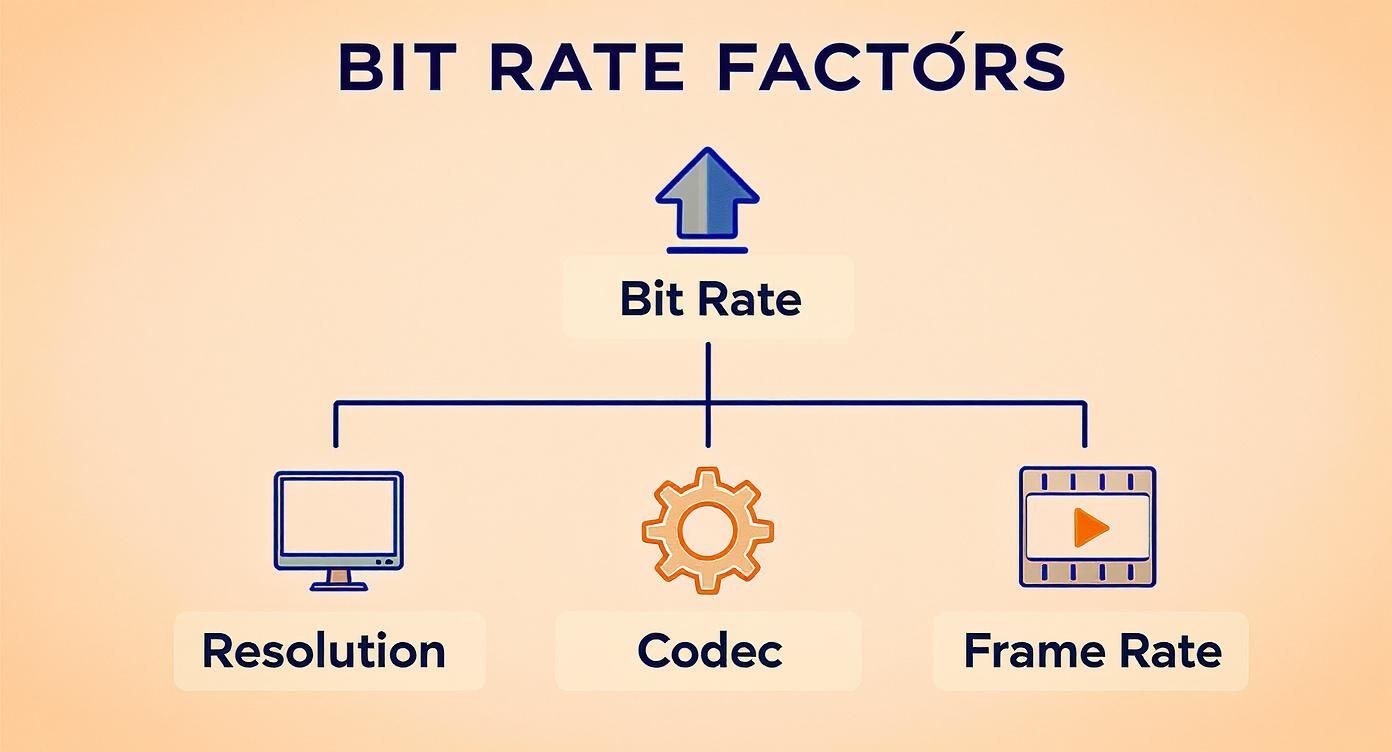
As you can see, bit rate sits right in the middle. It’s the central piece you have to adjust in relation to the other settings to get the final result you’re after.
Recommended Streaming Bit Rates for Common Resolutions
Building out a smart bitrate ladder is crucial for making ABR work. The table below offers some solid, real-world recommendations that align with what major platforms like YouTube use today. These values are a fantastic starting point for both standard (SDR) and High Dynamic Range (HDR) content.
Recommended Streaming Bit Rates for Common Resolutions
| Resolution | Frame Rate (fps) | SDR Video Bit Rate (Mbps) | HDR Video Bit Rate (Mbps) |
|---|---|---|---|
| 4K (2160p) | 60 | 20 – 51 | 24 – 68 |
| 4K (2160p) | 30 | 13 – 34 | 16 – 45 |
| 1440p | 60 | 9 – 18 | 12 – 24 |
| 1440p | 30 | 6 – 13 | 8 – 16 |
| 1080p | 60 | 4.5 – 9 | 5.5 – 12 |
| 1080p | 30 | 3 – 6 | 4 – 8 |
| 720p | 60 | 2.25 – 6 | 3 – 7.5 |
| 720p | 30 | 1.5 – 4 | 2 – 5 |
Of course, you’ll want to test and tweak these numbers to find what works best for your specific content and audience. But by following these guidelines and leaning into an adaptive bitrate strategy, you’re setting yourself up to deliver a professional, buffer-free stream that looks fantastic on any screen.
Bit Rate Standards for Professional Production
When we talk about video bit rate for streaming, we’re almost always focused on one thing: efficiency. How do we deliver the best possible quality in the smallest, most manageable package? But step into the world of professional production and broadcasting, and that entire philosophy gets turned on its head.
Here, the goal isn’t efficiency; it’s data preservation. The bit rates are astronomically higher because every last bit of visual information is considered precious.
Think of it like a Michelin-star chef. The final dish served to a customer (your streaming file) is a perfectly portioned, beautifully presented masterpiece. But back in the kitchen (the production environment), that chef is working with massive quantities of raw, whole ingredients to maintain complete control over every flavor and texture. Professional video workflows are just like that—they start with a colossal amount of data to ensure maximum flexibility down the line.
Mezzanine Codecs: The Post-Production Powerhouses
This is where professional-grade codecs like Apple ProRes and Avid DNxHR enter the picture. These aren’t built for streaming to a phone; they’re engineered to be edited, color-graded, and manipulated over and over without falling apart. We call them mezzanine or intermediate codecs.
These codecs use incredibly high video bit rates to keep compression artifacts to an absolute minimum. This preserves all the subtle details in color, shadow, and light that are critical for post-production. Trying to do a heavy color grade on a highly compressed H.264 file is like trying to restore a photocopy of a photocopy—the original data just isn’t there to work with.
The core difference comes down to intent. Streaming codecs are built for delivery, where small file sizes are king. Production codecs are built for creation, prioritizing image fidelity and editing performance above all else.
The Three Tiers of Video Files
To really get a handle on professional bit rates, it helps to think about video files in three distinct stages, each with its own job and typical bit rate.
- Master Files (Camera Originals): This is the raw or lightly compressed footage straight out of the camera. It’s packed with the maximum amount of image data and has an exceptionally high bit rate, often hitting hundreds or even thousands of Mbps.
- Mezzanine Files (Editing): These are the workhorses of post-production. Editors often transcode the original footage into a mezzanine codec like ProRes 422 HQ or DNxHR HQX. These files are easier for editing software to process while still holding onto immense visual detail.
- Delivery Files (Distribution): This is the final, highly compressed version exported for the end-user. Whether it’s heading to YouTube, Netflix, or broadcast TV, this file uses a codec like H.264 or AV1 at a much, much lower bit rate, optimized for smooth playback.
The bit rate numbers at the high end can be eye-watering. For example, a standard 1080p HD video at 29.97 fps, if left completely uncompressed with 12-bit 4:4:4 color, would need a staggering 2,237 Mbps. Using a high-quality mezzanine codec like DNxHR HQX brings that down to a more manageable (but still huge) 208 Mbps—far beyond what any streaming service uses.
For a clearer picture, let’s compare the bit rates for some common production and streaming formats side-by-side for 1080p video.
Bit Rate Comparison Production vs Streaming Formats (1080p)
| Format Type | Codec Example | Typical Bit Rate (Mbps) | Primary Use Case |
|---|---|---|---|
| Production Mezzanine | Apple ProRes 422 HQ | 220 Mbps | High-quality editing, color grading, mastering |
| Production Mezzanine | Avid DNxHR HQX | 208 Mbps | Professional post-production workflows in Avid |
| High-Quality Streaming | H.264 (AVC) | 8 Mbps | Premium VOD (Netflix, Hulu) and high-tier live streaming |
| Standard Streaming | H.264 (AVC) | 4-6 Mbps | General purpose streaming (YouTube, Twitch, social media) |
As you can see, the difference isn’t small—it’s a massive gap. The mezzanine files used by professionals contain 25-40 times more data per second than the final files we watch on our devices. If you want to dive even deeper, you can learn more about professional bitrate requirements and see just how much data is involved in creating the polished videos we consume every day.
Common Questions About Video Bit Rate
Alright, let’s tackle some of the questions that pop up all the time when you’re working with video streams. Getting these concepts straight is key to troubleshooting and optimizing your video workflow.
Is a Higher Bit Rate Always Better?
You’d think so, but the answer is a firm “no.” While a higher bit rate can mean better quality, it’s all about hitting the point of diminishing returns.
For example, bumping a 1080p stream from 5 Mbps to 8 Mbps will probably give you a crisper, more detailed image. You’ll see the difference. But pushing that same video from 20 Mbps to 40 Mbps? The improvement will be practically invisible to most viewers.
All you’ve really done is double the file size. That means higher storage bills for you and a bigger bandwidth hit for your audience. The real goal is finding the “sweet spot.”
The best video bit rate is the lowest one that still delivers the visual quality you need for a given resolution and frame rate. Anything beyond that is just wasted data.
What’s the Difference Between Bit Rate and Resolution?
This is a classic point of confusion. They’re related, but they measure completely different things.
- Resolution is about dimensions. It’s the number of pixels in each frame, like 1920×1080 for 1080p. Think of it as the raw potential for detail.
- Bit Rate is about data. It’s the amount of information you’re using to encode each second of video. It determines how much of that potential detail actually makes it to the screen.
Here’s a simple analogy: Resolution is the size of your canvas. Bit rate is how much paint you have. A massive 4K canvas (resolution) won’t look very good if you only give the artist a tiny tube of paint (a low bit rate) to work with.
How Does Audio Bit Rate Fit In?
We’ve been talking a lot about the video track, but don’t forget the audio! Audio has its own bit rate that adds to the total file size.
Luckily, audio data is much smaller. For most streaming, an audio bit rate between 128 kbps and 192 kbps is perfect. It delivers clean, rich sound without bloating your file size.
Ready to take control of your streaming quality? LiveAPI provides developers with the powerful tools and robust infrastructure needed to manage video encoding, transcoding, and delivery effortlessly. Build your video application with an API designed for quality and scale by visiting https://liveapi.com.