A solid rule of thumb is to have an upload rate for streaming that’s consistently 30-40% higher than your stream’s bitrate. This buffer isn’t just a nice-to-have; it’s a critical safety net against network hiccups, ensuring your audience gets a smooth, professional broadcast.
Why Your Upload Rate Is a Streamer’s Lifeline

Think of your internet upload speed as a highway. The data for your stream—your bitrate—are the cars traveling on it. A wide, multi-lane highway can handle all the traffic without breaking a sweat. More importantly, it has extra lanes ready to absorb sudden surges or handle detours, preventing frustrating traffic jams.
In the world of streaming, those “jams” show up as dropped frames, pixelation, and that dreaded buffering wheel. These are the exact issues that make viewers leave. This is precisely why having more upload speed than you technically need is non-negotiable for a pro-level stream. We call this extra capacity headroom.
Stability Over Sheer Speed
A massive number on a speed test might look impressive, but for streaming, stability is what really counts. A connection that reliably holds a steady 10 Mbps is infinitely better than one that bounces between 5 Mbps and 25 Mbps. Those wild fluctuations are a primary cause of stream quality issues because your encoder can’t push a steady flow of data to the streaming platform.
A stable connection is the foundation of your entire stream. Without it, even the fastest peak speeds won’t save you when the connection inevitably dips mid-broadcast.
This brings us back to why a safe upload rate is so important. By intentionally using only a portion of your total upload bandwidth, you create a buffer that shields your stream from those unavoidable network dips. This simple practice ensures a consistent, high-quality experience for your viewers from the moment you go live.
The Growing Capacity for Quality Streams
The good news is that internet infrastructure is constantly getting better, which has directly fueled the ability for creators to broadcast in high definition. Back in 2020, the average global upload speed was about 11.0 Mbps. By 2025, that figure had climbed to around 18.5 Mbps—a massive 68% increase in just five years.
This leap has empowered more creators than ever to stream in crisp HD and even 4K, which is crucial for meeting the ever-rising expectations of online audiences. You can dive deeper into the data by exploring more streaming trends and statistics.
Getting a handle on this core relationship—between your total speed, your stream’s data needs, and that all-important stability buffer—is the first step. It gives you the framework you need to master the more technical details of bitrate, resolution, and encoder settings we’ll cover next.
Bitrate vs. Upload Speed: What Every Streamer Needs to Know
To get your stream looking sharp and running smoothly, you need to nail two core concepts that often get mixed up: bitrate and upload speed. They might sound similar, but they do very different jobs. Understanding the difference is your first step toward a professional-quality broadcast.
Think of your upload speed as the total size of the pipe connecting you to the internet. This is a number you get from your internet service provider (ISP), and it represents the maximum amount of data you can possibly send out at any one time. It’s your connection’s total potential.
Your bitrate, on the other hand, is the actual flow of data you’re pushing through that pipe for your stream. You set this number yourself in your streaming software, like OBS or vMix. If upload speed is the size of the pipe, bitrate is how much water you’re actually sending through it.
How Bitrate Shapes Your Stream’s Quality
Your bitrate setting directly controls the visual quality of your stream. It’s the amount of data, measured in kilobits per second (Kbps), that you’re sending to Twitch, YouTube, or any other platform. More data equals a clearer, more detailed picture for your audience. It’s as simple as that.
But you can’t just crank the bitrate to the max and call it a day. The right number for you depends on a few key things:
- Resolution: A 1080p or 4K stream has way more pixels on screen than a 720p stream, so it needs a much higher bitrate to keep things from looking blocky.
- Frame Rate (FPS): Pushing out a silky-smooth 60 frames per second means sending twice the information of a 30 FPS stream. Naturally, that requires a bigger bitrate.
- Video Codec: The codec (like H.264 or the newer AV1) is the tech that compresses your video. Modern codecs are smarter, letting you achieve better quality with a lower bitrate.
Getting a handle on these factors is huge. If you want to dive deeper, we have a complete guide that explores what bitrate means and how it works behind the scenes.
Tying It All Together: Bitrate and Your Upload Connection
This is where the rubber meets the road. The bitrate you choose for your stream has to fit comfortably inside your total upload speed. If you set your software to stream at 6,000 Kbps (or 6 Mbps), you’re telling it to send a steady 6 Mbps of data to the streaming platform’s servers.
Your internet’s upload speed must be consistently higher than your stream’s bitrate. Trying to push a 6 Mbps bitrate with only a 5 Mbps upload connection is a recipe for disaster—your stream will constantly buffer and likely fail.
This is exactly why having extra “headroom” is so important. Internet connections aren’t perfect; they fluctuate. If your bitrate is set too close to your max upload speed, even a tiny dip in your connection can cause dropped frames and a stuttering mess for your viewers. A healthy upload rate for streaming gives you a safety buffer, ensuring your broadcast stays stable even when your internet connection has a momentary hiccup.
How to Calculate Your Streaming Upload Speed
So, you understand the difference between bitrate and upload speed. That’s the first step. Now, let’s get practical and figure out exactly what upload rate for streaming you need to pull off a rock-solid broadcast.
The secret isn’t just matching your bitrate to your upload speed—it’s about building in a safety net.
The 30% Headroom Rule: Your Stream’s Safety Net
Seasoned streamers live by a simple but crucial guideline: the “30% Headroom Rule.” It’s a straightforward idea—never max out your internet connection. You should only plan on using about 70% of your available upload bandwidth for your stream.
Think of it like this: your internet connection isn’t a perfectly smooth highway. It has dips, slowdowns, and unexpected traffic. That leftover 30% acts as a buffer, absorbing any sudden network congestion or hiccups from your ISP. Without it, the slightest drop in your connection could cause your stream to stutter, freeze, or drop frames, ruining the experience for your viewers.
The Headroom Calculation Formula
Figuring out the math is easy. All you need is your target video and audio bitrates, and then you apply the headroom rule.
(Target Video Bitrate + Audio Bitrate) / 0.7 = Your Minimum Required Upload Speed
Let’s walk through a real-world example. Say you’re aiming for a crisp 1080p stream at 60 frames per second. A common video bitrate for this is 6,000 Kbps, and your audio might be set to 160 Kbps.
- First, add your bitrates together: 6,000 Kbps + 160 Kbps = 6,160 Kbps
- Next, apply the headroom rule: 6,160 / 0.7 = 8,800 Kbps
- Finally, let’s convert that to Mbps, since that’s what internet speed tests use: 8,800 Kbps is 8.8 Mbps.
So, to reliably push a 6,000 Kbps stream, you need a stable upload speed of at least 8.8 Mbps. This simple calculation is the single best way to know if your connection can handle your stream.
This image below does a great job of showing how your bitrate fits within your total upload speed.
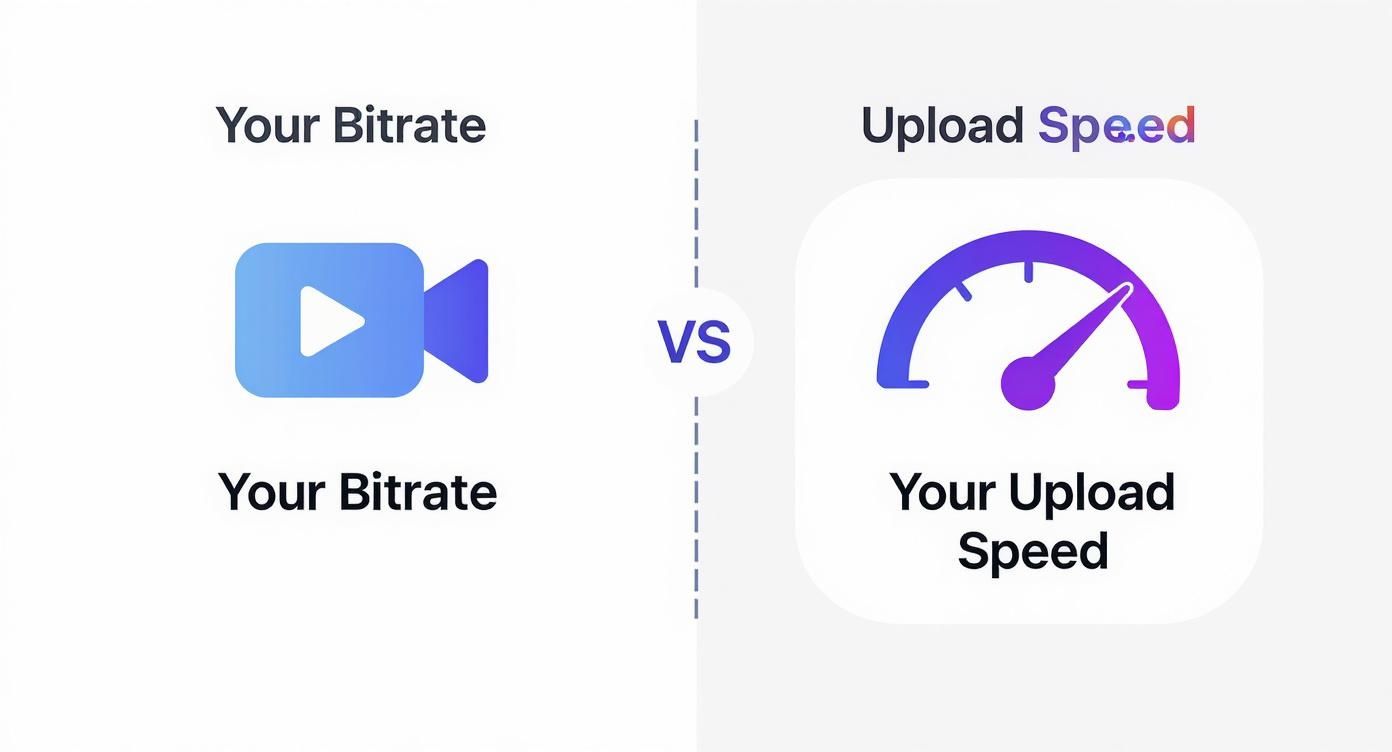
As you can see, your stream’s bitrate should only ever be a piece of the pie, never the whole thing.
Recommended Bitrates and Required Upload Speeds for Streaming
To save you some time, we’ve already run the numbers for the most common streaming setups. This table gives you recommended video bitrates and the corresponding minimum upload speed you’ll need, calculated with that 30% safety buffer. We’ve also factored in a standard audio bitrate of 160 Kbps.
| Resolution | Frame Rate (fps) | Recommended Video Bitrate (Kbps) | Minimum Required Upload Speed (Mbps) |
|---|---|---|---|
| 720p | 30 fps | 3,000 | 4.5 Mbps |
| 720p | 60 fps | 4,500 | 6.7 Mbps |
| 1080p | 30 fps | 4,500 | 6.7 Mbps |
| 1080p | 60 fps | 6,000 | 8.8 Mbps |
| 1440p (2K) | 30 fps | 6,000 | 8.8 Mbps |
| 1440p (2K) | 60 fps | 9,000 | 12.9 Mbps |
| 2160p (4K) | 30 fps | 13,000 | 18.8 Mbps |
| 2160p (4K) | 60 fps | 20,000 | 28.8 Mbps |
Just find the resolution and frame rate you’re aiming for. The table shows you what to plug into your encoder and what your internet connection needs to deliver. Sticking to these guidelines is one of the most powerful things you can do to guarantee a smooth, professional stream every time you go live.
What Else Affects Your Stream Quality?
Figuring out the right upload rate for streaming is a huge win, but your raw speed is just one piece of the puzzle. A few other critical choices and technologies will ultimately decide whether your broadcast is a smooth, crisp experience or a stuttering, pixelated mess for your viewers.
Getting a handle on these factors will help you make smarter decisions when setting up your stream, so you can push out the absolute best quality your internet connection can support.
Adaptive Bitrate Streaming: The Viewer’s Safety Net
You might have a killer internet connection, but what about your audience? Not everyone watching has the bandwidth to handle a flawless 1080p stream at 60 frames per second. This is exactly why Adaptive Bitrate (ABR) streaming is so essential for modern platforms.
ABR works by creating several versions of your stream at different bitrates and quality levels all at once. The viewer’s video player then smartly detects their internet speed and automatically serves them the best possible version they can watch without buffering.
So, a viewer on a shaky connection might get a 720p stream, while someone with fiber enjoys the full 1080p experience. It’s a win-win: your stream can reach everyone, and you don’t have to downgrade your own broadcast quality to do it. This whole process is a key part of what we call video transcoding, a must-have for any reliable stream.
The Bandwidth Tax of Multistreaming
Want to grow your audience faster? Broadcasting to multiple platforms like Twitch, YouTube, and Facebook at the same time—known as multistreaming—is a fantastic strategy. Just be aware that it comes with a steep technical price.
Each new platform you stream to creates a completely separate upload from your computer. If you’re sending a 6,000 Kbps stream to Twitch and decide to add YouTube at the same bitrate, your computer is now pushing 12,000 Kbps (or 12 Mbps) in total.
For every platform you add, you are essentially multiplying your upload bandwidth requirements. Before you go live everywhere, you have to recalculate your headroom to make sure your connection can handle the combined load.
Forgetting to account for this is a classic mistake that can crush even a powerful internet connection, causing all of your streams to lag and buffer.
How Video Codecs Shape Your Stream
Another piece of the puzzle is the video codec you choose. A codec is simply the technology that compresses your video data before it’s sent out. Think of it like a packing expert who can magically fit the same wardrobe into a much smaller suitcase.
- H.264 (AVC): For years, this has been the go-to standard. It delivers solid quality and works on almost any device or platform you can think of. It’s the reliable, safe bet.
- H.265 (HEVC) & AV1: These are the new kids on the block. They’re far more efficient, delivering the same—or even better—video quality as H.264 but at a much lower bitrate. The catch? They demand more computer processing power and aren’t quite as universally supported just yet.
By choosing a modern codec like AV1, you might be able to stream at 1080p using the same bitrate H.264 would need for a 720p stream. In short, it lets you punch above your weight, quality-wise.
The Rise of 5G and Mobile Streaming
The streaming world is also being transformed by mobile tech, especially with the spread of 5G networks. This rollout has dramatically improved upload speeds, with the average on 5G hitting around 25 Mbps—that’s a 150% jump from the 10 Mbps average on 4G LTE. This leap has finally made high-quality, on-the-go streaming a real possibility for creators everywhere.
How to Test and Troubleshoot Your Connection
Knowing your numbers is one thing, but a successful stream depends on a stable, real-world connection. You can have the perfect bitrate settings, but a shaky network will still ruin your broadcast with dropped frames, pixelation, or the dreaded buffering wheel.
This is where testing and troubleshooting become your best friends. By proactively checking your connection, you can catch problems before you go live and make sure your audience gets the flawless experience they deserve.
Performing an Accurate Speed Test
Just running a generic speed test isn’t enough. For streaming, we need to be a bit more strategic to get a true picture of our connection’s performance. Not all test servers are created equal, and testing your speed against a server across the country won’t tell you much about your connection to your streaming platform’s ingest server.
To get the most reliable results, follow these steps:
- Pick the Right Server: Use a tool like Speedtest.net, but don’t just hit the “Go” button. Manually select a test server located in the same city or region as your primary streaming ingest server. For instance, if you stream to a US-East server, choose a test server in a major East Coast hub like New York or Ashburn.
- Look Beyond the Big Number: The upload speed is important, but it’s not the whole story. Pay close attention to ping (latency) and jitter. High ping can introduce delays, while high jitter points to an unstable, spiky connection—both are major red flags for live video.
- Run Multiple Tests: Your internet speed isn’t static; it can fluctuate throughout the day, especially during peak usage hours. Run a few tests at different times to understand your connection’s consistency and find its weakest points.
The goal is to discover your connection’s consistent baseline upload speed, not just its absolute peak. A reliable 10 Mbps is far better for streaming than a connection that spikes to 30 Mbps but then plummets to 5 Mbps.
Your Go-To Troubleshooting Checklist
When your stream starts to stutter or drop frames, it’s easy to panic. But instead of randomly changing settings, it’s better to work through a logical checklist to find the real problem. An unstable upload rate for streaming is often caused by just a few common culprits.
Start with these foundational checks before you even think about messing with complex software settings. Nine times out of ten, the solution is right here. If you’ve tried these fixes and are still running into trouble, it might be time to learn more about the specific causes of buffering when streaming to diagnose deeper issues.
Common Issues and Their Solutions
- Problem: Unstable Wi-Fi Signal
- Solution: Get off Wi-Fi and plug in. Switching to a wired Ethernet connection is the single most effective thing you can do to improve stream stability. Wi-Fi is easily disrupted by other devices, walls, and even your microwave, which leads to packet loss and dropped frames.
- Problem: Background Bandwidth Hogs
- Solution: Close everything you don’t need. Cloud sync services like Dropbox or Google Drive, game launchers like Steam, and even extra browser tabs can secretly chew up your upload bandwidth. Open your computer’s task manager or activity monitor to find and shut down any non-essential processes.
- Problem: Network Congestion
- Solution: Check what else is happening on your network. Is someone else in the house downloading huge files, gaming online, or streaming a 4K movie? All that activity can saturate your connection. Look into your router’s Quality of Service (QoS) settings to prioritize traffic from your streaming computer.
By systematically testing your connection and running through these simple troubleshooting steps, you can quickly fix the vast majority of stream quality issues and keep your broadcast looking smooth and professional.
Common Questions About Streaming Upload Rates
Alright, we’ve walked through the fundamentals, from calculating headroom to checking your connection. But I know you probably still have some specific questions buzzing around. Let’s tackle a few of the ones I hear most often.
Is 10 Mbps Upload Speed Good Enough for Streaming?
For most people, yes. A steady 10 Mbps upload speed is plenty.
Think about it: a high-quality 1080p stream at 60fps usually needs a bitrate of about 6,000 Kbps, which is just 6 Mbps. If we use that 30% safety buffer we talked about, you’d need about 8.8 Mbps. So, a solid 10 Mbps connection gives you a nice cushion to handle any small network hiccups without your stream quality taking a hit.
I Have a Fast Connection, So Why Am I Dropping Frames?
This is a classic problem. Your speed test looks great, but your stream is a stuttery mess. If you’re dropping frames despite having tons of bandwidth, the bottleneck is hiding somewhere else.
Here are the usual suspects:
- CPU Overload: Your computer just can’t keep up with encoding the video live. Try dialing back your in-game graphics or choosing a “faster” encoder preset in your streaming software to ease the load on your processor.
- Network Instability: Speed isn’t everything; stability is king. You could have a 100 Mbps connection, but if it’s prone to packet loss, you’ll drop frames. The single best fix for this is ditching Wi-Fi and plugging in an Ethernet cable.
- Server Problems: Sometimes, it’s not you, it’s them. The streaming platform’s ingest server might be having issues. Pop into your software settings and try switching to a different server that’s still close by.
A fast but shaky connection will cause more headaches than a slower, rock-solid one. Always prioritize stability. It’s the secret to a smooth stream.
Can I Stream and Game on the Same Connection?
You absolutely can. It’s how most streamers operate. The key is understanding how each activity uses your connection.
Online gaming actually sips bandwidth, usually less than 1 Mbps on the upload side. What it really cares about is low latency and zero packet loss. Your stream, on the other hand, is the big bandwidth hog.
As long as your total upload speed can easily cover your stream’s bitrate plus a little extra for your game and anything else on the network, you’re good. For the smoothest experience, look into your router’s Quality of Service (QoS) settings. A good QoS setup can prioritize traffic for both your game and your stream, making sure they play nicely together.
Take the guesswork out of your streaming infrastructure with LiveAPI. Our powerful tools for developers handle the complexities of video encoding, transcoding, and delivery, so you can build and launch your video application with confidence. Explore our developer-friendly solutions at https://liveapi.com.