For a crisp 1080p stream, a good rule of thumb is to start somewhere between 3,000 and 6,000 kbps for 30fps video. If you’re broadcasting high-motion content at 60fps, you’ll want to aim higher, in the 4,500 to 9,000 kbps range.
This range is a fantastic starting point, giving you a solid balance between sharp visual quality and a smooth, buffer-free stream for most viewers. But of course, there’s more to it than just picking a number.
Decoding the Best Bitrate for 1080p
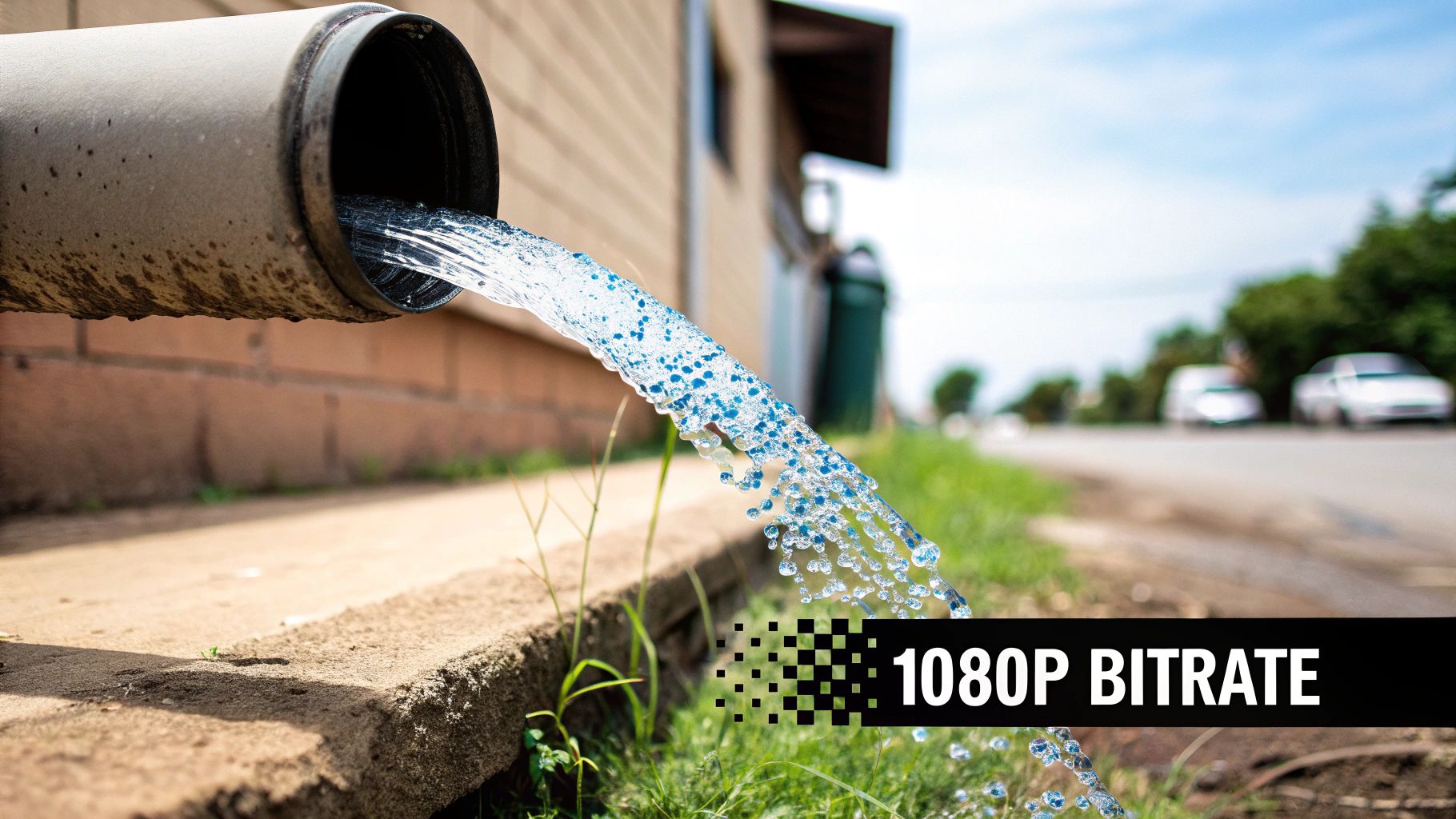
I like to think of bitrate as the amount of water flowing through a pipe. Your resolution—in this case, 1080p—is the fixed size of that pipe. The bitrate is how much water (or data) you’re pushing through it every second. Send too little, and you get a trickle—a pixelated, blocky mess. Push too much, and you might burst the pipe, overwhelming your viewer’s internet connection and causing that dreaded buffering wheel.
Finding the perfect bitrate is less about a single magic number and more about understanding the moving parts of your stream. The ultimate goal is always to deliver the best quality your viewer’s connection can handle without a hitch.
Factors That Define Your Starting Point
Before you lock in your settings, think about what you’re actually streaming. A static shot of someone talking is a completely different beast than a fast-paced esports tournament. The ideal bitrate changes based on a few key variables:
- Frame Rate (fps): Higher frame rates like 60fps are amazing for capturing smooth motion, but they’re data-hungry. They need a significantly higher bitrate than standard 30fps video to look good.
- Content Complexity: Is your scene full of rapid movement, detailed textures, and quick cuts? Things like live sports or video games require a higher bitrate to keep everything looking sharp and avoid ugly compression artifacts.
- Codec Efficiency: The video codec you use matters. A modern codec like H.265 (HEVC) is much better at compressing video than its predecessor, H.264 (AVC). This means you can achieve the same visual quality at a lower bitrate, saving bandwidth for you and your viewers.
Industry guidelines from major platforms give us a pretty clear picture. For a typical 1080p stream at 30fps using H.264, the standard recommendation is 3 to 6 Mbps. Once you double the frame rate to 60fps for gaming or sports, that number jumps to 4.5 to 9 Mbps to keep up with all the extra information.
The Sweet Spot: The ideal bitrate is the lowest value you can use that still delivers the visual quality you’re happy with, all while ensuring your viewers can actually watch it smoothly. It’s a constant balancing act between efficiency and experience.
Recommended Starting Bitrates for 1080p Streaming
To give you a practical starting point, here’s a quick reference table. Think of these as a reliable baseline for your first encoding tests.
| Resolution | Frame Rate (fps) | H.264 (AVC) Bitrate | H.265 (HEVC) Bitrate |
|---|---|---|---|
| 1080p | 30 fps | 3,000–6,000 kbps | 1,500–3,000 kbps |
| 1080p | 60 fps | 4,500–9,000 kbps | 2,250–4,500 kbps |
These numbers are a great launchpad. Once you’re ready to fine-tune your settings and truly master your stream quality, you can explore our complete guide on the best bitrate for streaming video.
Why Bitrate Is About More Than Just a Number
It’s tempting to just grab a recommended bitrate and call it a day, but if you want truly professional-looking streams, you need to understand why those numbers are just a starting point. Think of it this way: resolution (like 1080p) is the size of your canvas, and bitrate is the amount of paint you get to use. If you have a massive canvas but only a tiny tube of paint, the picture is going to look sparse and blotchy, no matter how big it is.
The same thing happens with video. A high-resolution stream that’s starved for data turns into a pixelated mess. A 1080p video has to fill 2,073,600 pixels with fresh, accurate information for every single frame, and that requires a healthy data budget.
Content Complexity is the Real Game-Changer
Here’s the thing: not all 1080p video is the same. The content itself completely changes the bitrate you’ll need. Let’s imagine two very different live streams: a calm, talking-head webinar versus a fast-paced esports tournament.
- Low Complexity: In the webinar, very little changes from one frame to the next. The background stays the same, and only the speaker’s face moves slightly. Your encoder can get clever and reuse a ton of data from previous frames, meaning it needs a much lower bitrate to maintain great quality.
- High Complexity: That esports tournament is the total opposite. Every frame is exploding with new information—rapid player movements, special effects, and constantly shifting camera angles. The encoder has to work overtime, demanding a much higher bitrate to capture all that action without devolving into a blurry mess.
Choosing the right bitrate is less about the resolution itself and more about the visual chaos happening within each frame. For anything with high motion and a lot of detail, a higher bitrate for 1080p is non-negotiable if you want to avoid ugly compression artifacts.
This is exactly why a one-size-fits-all bitrate just doesn’t work. What looks fantastic for a podcast stream would be a disaster for a live sports broadcast.
Getting Technical: Measuring Data with Bits Per Pixel
If you want to move past guesswork, there’s a much more precise way to think about this: Bits Per Pixel (BPP). BPP is a simple metric that tells you how many bits of data are being used to encode each individual pixel. It gives you a standardized way to talk about video quality.
The formula is pretty simple:
BPP = Bitrate (in bits per second) / (Resolution Width × Resolution Height × Frame Rate)
For good quality online video, you generally want to aim for a BPP between 0.05 and 0.15. For content with a lot of movement, you’ll definitely want to be on the higher end of that range.
Let’s put this into practice. Say we’re setting up a stream for a high-motion scene at 1080p and 30 fps, and we want to target a BPP of 0.1:
- First, find the total pixels per second:
1920 × 1080 × 30 = 62,208,000 - Next, multiply that by our target BPP:
62,208,000 × 0.1 = 6,220,800 bps - Finally, convert bits to kilobits:
6,220,800 / 1000 = 6,220 kbps
This calculation shows us that a bitrate around 6,200 kbps is a solid, technically-sound starting point for this specific type of high-action 1080p video. Using BPP helps you make smart, data-driven decisions that are perfectly suited to what you’re actually streaming.
Choosing Your Rate Control Strategy
Once you’ve settled on a target bitrate, the next question is how your encoder should spend that data budget. This is where rate control comes in. Think of it like this: your bitrate is your total budget for a project, but your rate control strategy is the plan for how you’ll spend that money from scene to scene.
You’ve got three main ways to handle this: Constant Bitrate (CBR), Variable Bitrate (VBR), and Constant Rate Factor (CRF). Getting a feel for each one is crucial for getting the most out of your 1080p stream or recording.
Constant Bitrate (CBR): The Reliable Workhorse for Live Streaming
Constant Bitrate, or CBR, is the cruise control of video encoding. You pick a number—let’s say 4,500 kbps—and the encoder sticks to it, no matter what’s happening in the video.
That predictability is exactly why it’s so popular. For live streaming, CBR is the industry standard. It creates a smooth, steady data stream that won’t suddenly choke your internet connection or cause buffering for your audience. The bitrate won’t spike during a big action sequence, which makes it much easier on everyone’s network.
Of course, there’s a trade-off. This stability isn’t very efficient. During quiet, static scenes, CBR is essentially wasting bandwidth by sending more data than is needed. Then, when things get chaotic on screen, it can’t ramp up, which can lead to the video looking pixelated or blocky right when you need clarity the most.
- Best for: Live events, conferences, or any broadcast where a stable connection is more important than squeezing every last drop of quality out of your bits.
- Bottom line: Go with CBR when you’re live on a platform like YouTube or Twitch and need reliability above all else.
Variable Bitrate (VBR): The Smart Choice for On-Demand Video
Variable Bitrate (VBR) takes a more dynamic approach. Instead of a single, rigid target, you give the encoder an average bitrate to aim for, and usually a maximum limit it can’t exceed. From there, the encoder gets smart, dedicating more data to complex, fast-moving scenes and pulling back during simple, static moments.
It’s like driving a car with a manual transmission. You give it more gas when you’re going uphill (action scenes) and ease off on flat, open roads (simple scenes) to conserve fuel. The result is much more consistent visual quality from start to finish and, often, a smaller file size than you’d get with CBR at the same level of quality.
VBR is the undisputed champion for on-demand video files (VOD). It hits the sweet spot between file size and quality, making sure your data budget is spent where it’s most visible.
The only real knock against VBR is its unpredictability in a live setting. Those bitrate spikes, while great for quality, can overwhelm an unstable internet connection and cause problems for real-time delivery.
Constant Rate Factor (CRF): The Pursuit of Perfect Quality
Constant Rate Factor, or CRF, completely changes the game. Instead of telling the encoder to hit a certain bitrate, you tell it to hit a certain level of quality. You just pick a CRF value—for the popular x264 codec, it’s a scale from 0 to 51—and the encoder will use whatever bitrate it needs to maintain that visual standard.
A lower CRF number, like 18, tells the encoder “make this look amazing,” which results in a bigger file. A higher number, like 28, says “save me some space,” which means lower quality. This is the go-to method for archivists and professionals creating master files where visual fidelity is everything and file size is a secondary concern.
Building a Modern Adaptive Bitrate Ladder
Picking just one bitrate for your 1080p stream seems simple enough, but it’s a recipe for frustration in the real world. Your audience is watching on everything from blazing-fast fiber to spotty coffee shop Wi-Fi. A single, high-quality stream that looks great at home becomes a buffering nightmare on a mobile network.
This is exactly the problem Adaptive Bitrate (ABR) streaming was designed to solve.
Think of it like this: instead of sending everyone the same giant file, you create a “ladder” of different video versions. The top rung is your pristine 1080p stream, but below it are several other versions—or renditions—at lower resolutions and bitrates. A viewer’s video player intelligently detects their current network conditions and automatically hops between these rungs. The result? Smooth, uninterrupted playback for everyone.
This is the secret sauce behind a professional, buffer-free viewing experience. If you want to get into the nitty-gritty, we have a full guide on adaptive bitrate streaming that breaks it all down.
Crafting a Practical ABR Ladder
So, what does one of these ladders actually look like? It all starts with your high-quality source file—our 1080p stream—which then gets transcoded into several smaller renditions. This ensures that even someone with a very slow connection can still watch your content without interruption, just at a lower resolution.
Thankfully, you don’t have to do this by hand. Modern platforms like LiveAPI automate this entire process. You provide the 1080p stream, and the system instantly generates a complete ABR ladder, making it ready for delivery across the globe.
Let’s look at a concrete example. Here’s a typical ABR ladder you might see for a 1080p 30fps source stream. Pay attention to how the bitrates drop as the resolution gets lower and how much more efficient the H.265 codec is compared to the older H.264.
Example ABR Ladder for a 1080p Source Stream
| Rendition Name | Resolution | Target H.264 Bitrate (kbps) | Target H.265 Bitrate (kbps) |
|---|---|---|---|
| Full HD | 1080p | 4,500 | 2,250 |
| HD | 720p | 2,500 | 1,250 |
| Standard | 480p | 1,000 | 500 |
| Mobile | 360p | 600 | 300 |
This structure acts as a safety net. A viewer might connect and start watching in glorious 1080p, but if they walk to another room and their Wi-Fi signal dips, their player can seamlessly drop down to the 720p or 480p stream without the video ever stopping.
Optimizing for Real-World Performance
Just having a ladder isn’t enough; you have to deliver it effectively. This is where network performance and actual user behavior come into play.
For instance, LiveAPI users often find the sweet spot for a 1080p live feed is around 5-7 Mbps. This gives the system enough data to create a really rich ABR ladder. Partnering that with a top-tier CDN like Cloudflare can slash latency by 30-50% in major regions.
It’s also crucial to think about your mobile viewers. They’re often on metered data plans. It’s no surprise that YouTube’s data shows around 70% of viewers stick with 1080p on their phones instead of 4K. Why? Because 1080p uses a reasonable 3.3 GB per hour, while 4K chews through a massive 13 GB per hour.
The diagram below shows the fundamental rate control methods that encoders use to create each step in the ABR ladder.
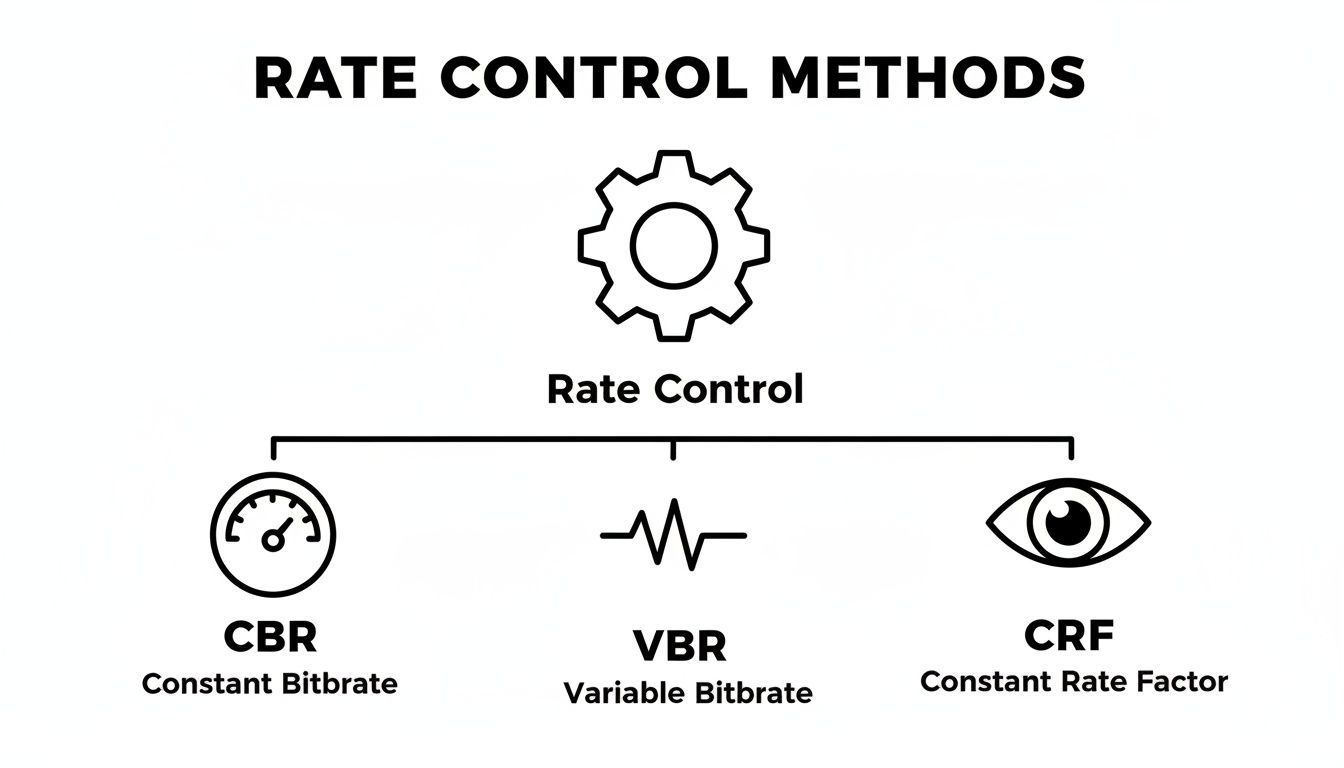
These methods—CBR, VBR, and CRF—represent the core choices between predictable file sizes, efficient data usage, and consistent quality. Getting these settings right for each rung on your ladder is key to a flawless stream.
How Modern Codecs Are Changing the Game
To really get a feel for how efficient modern video streaming is, you have to look at how far 1080p has come. It wasn’t always the high-frame-rate, do-it-all standard we have today. The earliest broadcast standards were really held back by the tech of their time.
In the US, the first ATSC standards for 1080p only supported frame rates like 24, 25, and 30 fps, and that was using the old H.264/AVC codec. It took later updates to even add support for smooth, high-motion content at 60 fps. More recently, things like HDR and wider color gamuts got rolled into what’s now called ‘Advanced 1080p’.
This whole evolution points to one driving goal: squeezing better quality out of less data. This is exactly where modern video codecs have flipped the script for developers and anyone creating video content.
The Power of Smarter Compression
The classic H.264 (AVC) codec has been the trusty workhorse of online video for over a decade. It’s solid, supported everywhere, and gets the job done. But newer codecs like H.265 (HEVC) and AV1 are a massive leap forward in compression.
Think of it like packing for a trip. H.264 is you being a pretty good packer—you can fit a lot into your suitcase. Using HEVC is like discovering those vacuum-seal bags for the first time. Suddenly, you can pack the exact same amount of clothes (your video quality) into a bag that’s nearly half the size.
This is a total game-changer for 1080p streaming. A video that needed a 6,000 kbps bitrate with H.264 can look just as sharp at only 3,000 kbps with HEVC. That’s a 50% reduction in bandwidth for the same viewing experience.
This isn’t magic. It comes from smarter algorithms that are way better at predicting motion and getting rid of redundant information between frames. If you want to get into the weeds of how it all works, our guide to the HEVC video format breaks it all down.
Translating Codec Efficiency into Real-World Wins
These bitrate savings have a huge impact on the bottom line. For any business that delivers video, using less data means serious cost savings and a much better experience for your users.
- Lower Bandwidth Costs: The most obvious win. Your CDN delivery bill goes down when every viewer is pulling less data.
- Reduced Storage Needs: For video-on-demand libraries, smaller files mean your storage costs get slashed, letting you host way more content for the same budget.
- Reaching a Bigger Audience: Offering great-looking 1080p at a lower bitrate opens the door to people on slower internet connections or mobile users trying to save data.
- A Better Viewer Experience: Lower bitrates lead to quicker start times and a lot less of that dreaded buffering wheel, which keeps people watching longer.
At the end of the day, picking the right codec is just as important as picking the right bitrate for your 1080p streams. While H.264 is still a safe bet for universal compatibility, leaning into modern codecs like HEVC is how you build a video platform that’s both high-performance and cost-effective.
Troubleshooting Common 1080p Bitrate Problems

Even after you’ve dialed in the perfect settings, the real world has a way of throwing curveballs. Viewers on shaky Wi-Fi, unexpectedly complex scenes, or a simple encoder hiccup can all derail an otherwise great stream. Knowing how to spot and fix these issues is what separates a good stream from a professional one.
At the heart of most streaming headaches is a simple conflict: the amount of data you’re sending versus what the viewer’s connection can handle. Learning to read the signs helps you get to the root of the problem fast. Think of this as your field guide to debugging streams.
Identifying Buffering and Freezing
This is the big one—the most frustrating issue a viewer can experience. The video stutters to a halt, the infamous spinning wheel appears, and just like that, the viewing experience is ruined.
- Symptom: Your audience is complaining about constant buffering or the stream freezing up entirely.
- Cause: The bitrate you’ve chosen is simply too high for their internet connection. They can’t download the video segments fast enough to keep up with the playback.
- Solution: The single best fix is implementing an adaptive bitrate (ABR) ladder. This gives the video player a set of lower-quality options to fall back on automatically. If you’re stuck with a single bitrate, your only option is to lower it to a point that even viewers on slower connections can manage.
Key Takeaway: Buffering is almost always a bandwidth problem on the viewer’s end. An ABR strategy is the modern, industry-standard way to solve it and deliver a smooth experience to everyone, regardless of their connection speed.
Fixing Pixelation and Blocky Video
Your stream is stable, but it looks like a mess, especially during action-packed moments. This is a classic sign that your encoder is being starved of data when it needs it most.
- Symptom: During fast-motion scenes—think sports, video games, or confetti cannons—the image gets blurry, blocky, or pixelated.
- Cause: The bitrate is too low to capture all the detail in those complex frames. To stay within its data budget, the encoder has to throw away visual information, which shows up as ugly compression artifacts.
- Solution: You need to increase the target bitrate. For on-demand video files, switching from Constant Bitrate (CBR) to Variable Bitrate (VBR) can make a world of difference. VBR is smart enough to allocate more data to the complex parts of the video where it’s desperately needed.
Resolving Audio and Video Sync Problems
Nothing is more jarring than when someone’s words don’t match their lip movements. This A/V sync drift can quickly make a stream feel unprofessional and unwatchable.
- Symptom: Over time, the audio track and the video track slowly drift apart.
- Cause: This usually points to a performance bottleneck, either on your encoding machine or the viewer’s device. If your computer can’t keep up, it might start dropping video frames, causing the video to lag behind the audio.
- Solution: First, check your keyframe interval. It should almost always be set to 2 seconds. A consistent, frequent keyframe gives the player regular reference points to stay in sync. If that doesn’t fix it, take a look at your encoder’s CPU usage. You may need to use a faster, less demanding encoding preset to ease the load.
Common Questions About 1080p Bitrate
Let’s wrap up by tackling some of the most common questions we get from creators and developers. Think of this as the practical advice you need to handle real-world streaming situations and get your settings dialed in perfectly.
What’s the Best Bitrate for Streaming 1080p to YouTube or Twitch?
Even though they’re both titans of the streaming world, YouTube and Twitch have slightly different bitrate recommendations for 1080p. Why? It all comes down to how they balance quality against stability for their massive, global audiences.
YouTube offers a lot of flexibility. For a 1080p stream at 60fps, they suggest a range between 4,500 and 9,000 Kbps. This wide window lets creators with beefy internet connections push for near-pristine quality.
Twitch, on the other hand, prioritizes real-time stability above all else. They recommend a much tighter target of around 6,000 Kbps for 1080p at 60fps. This helps ensure a smooth, buffer-free experience for viewers, no matter where they are.
How Does Audio Bitrate Affect My Total Stream Bitrate?
It’s easy to forget about audio, but it’s a critical part of the equation. While video data eats up the lion’s share of your bandwidth, poor audio quality can ruin an otherwise great stream.
For most live streams, the sweet spot is a stereo audio track encoded at 128-160 Kbps using the AAC codec. This delivers crisp, clear sound without hogging your bandwidth. Think about it: adding a 128 Kbps audio track to a 4,500 Kbps video stream is a tiny addition, but the jump in perceived quality is huge.
Can I Stream 1080p with a 5 Mbps Upload Speed?
You can, but it’s like walking a tightrope without a net. It’s technically possible, but I wouldn’t recommend it for any serious broadcast. A 5 Mbps upload speed leaves zero room for error.
Let’s say you set your stream to 4,000 Kbps (4 Mbps). You’re immediately using 80% of your total available bandwidth. Any small dip in your connection—which happens all the time due to network congestion or even just someone else in your house watching Netflix—will instantly lead to dropped frames and a buffering nightmare for your audience.
As a rule of thumb, always make sure your upload speed is at least 1.5 to 2 times your target bitrate. This safety cushion is what keeps your stream running smoothly when your internet connection inevitably fluctuates.
Does a Higher Bitrate Always Mean Better Quality?
Not necessarily. There’s a definite point of diminishing returns. Pumping up your bitrate will improve quality up to a certain point, but once you hit that sweet spot, adding more data just wastes bandwidth without making any visible difference.
The real goal is to find that perfect balance—the lowest possible bitrate that delivers the highest quality your viewers will actually notice.
Ready to build a powerful, scalable video application without the infrastructure headache? LiveAPI provides the robust APIs and global CDN partnerships you need to deliver flawless 1080p streams. Get started with LiveAPI today!