Finding the best compression for video is a critical balancing act between visual quality, file size, and compatibility. Efficient compression determines everything from streaming performance and storage costs to user experience. Whether you’re a developer building a video platform, a content creator sharing high-resolution files, or a media company delivering broadcast-quality streams, choosing the right codec and tool is fundamental to your success. Get it wrong, and you face buffering, excessive data usage, and inflated hosting bills. Get it right, and you deliver a seamless, high-quality experience to your audience while optimizing operational efficiency.
This guide moves beyond theory to provide a practical, in-depth comparison of the industry’s most powerful video compression tools and the codecs they utilize. We will analyze everything from command-line workhorses like FFmpeg and user-friendly GUIs like HandBrake to professional-grade software such as Adobe Media Encoder and cloud-based platforms like AWS Elemental MediaConvert. For each option, you’ll find a detailed breakdown of its core features, ideal use cases, and key strengths, complete with screenshots and direct links. We’ll explore the critical differences between H.264, HEVC (H.265), VP9, and the next-generation AV1, helping you select the perfect compression strategy for your specific project.
1. FFmpeg
FFmpeg is not just a tool; it’s the foundational engine powering a significant portion of the world’s video processing. As a free, open-source command-line framework, it provides developers, media professionals, and advanced content creators with unparalleled access to a vast library of codecs, filters, and formats. This makes it an essential component for anyone serious about achieving the best compression for video while maintaining precise quality control.
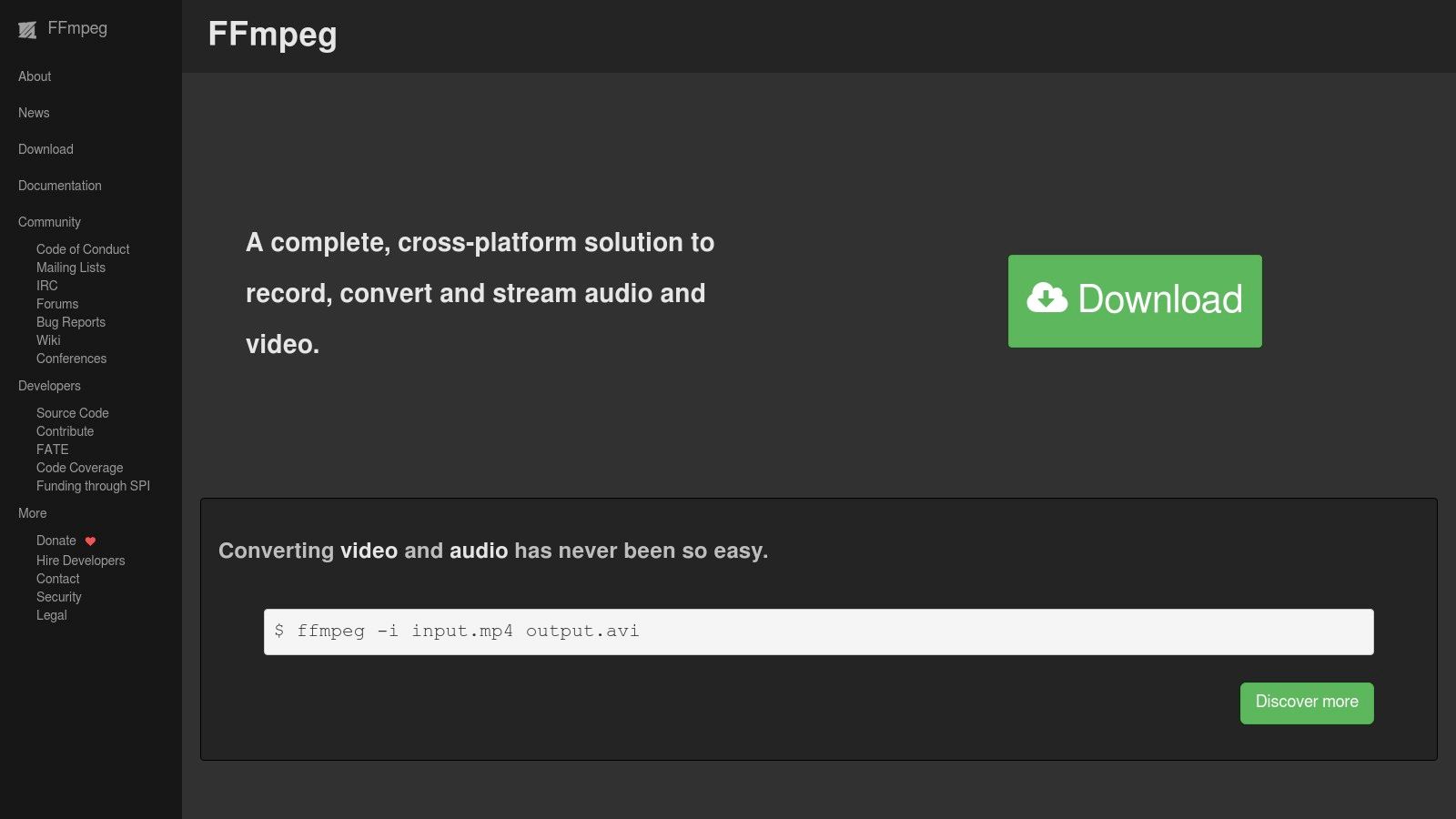
Unlike user-friendly graphical applications, FFmpeg’s power lies in its scriptable nature. It enables complex, automated workflows for transcoding, filtering, and streaming, which is why it’s the backbone of many video platforms, from YouTube to countless streaming services. Its constant development ensures it supports the latest advancements, including AV1 encoding and hardware acceleration via APIs like NVENC, VAAPI, and VideoToolbox.
Key Features and Strengths
FFmpeg’s core advantage is its granular control. Users can fine-tune every aspect of the video encoding process, from bitrate and rate control methods (like CRF) to GOP size and psycho-visual optimizations. This level of customization allows for optimal file size-to-quality ratios that preset-based software often cannot match.
- Extensive Codec Support: Includes encoders and decoders for H.264 (libx264), H.265 (libx265), VP9 (libvpx), and AV1 (libaom-av, libsvtav1).
- Advanced Filtering: Provides a massive library of audio and video filters for resizing, cropping, color correction, watermarking, and more.
- Hardware Acceleration: Leverages GPU power to significantly speed up encoding and decoding tasks.
- Total Cost: Completely free and open-source, with no licensing fees.
Challenges and Considerations
The primary hurdle for new users is its command-line interface. There is no official GUI, which presents a steep learning curve. Mastering the syntax requires dedication and a willingness to consult its extensive documentation. However, this initial investment pays off with unmatched flexibility and automation capabilities. If you’re new to the core concepts, you can explore this detailed guide on what is encoding a video for a solid foundation.
Website: https://ffmpeg.org/
2. HandBrake
HandBrake is a universally acclaimed tool that bridges the gap between complex command-line encoders and the need for a user-friendly interface. As a free, open-source video transcoder, it takes the power of engines like FFmpeg and packages it into a clean graphical application, making high-quality video compression accessible to everyone from home users to professional creators. It’s the ideal choice for those looking for the best compression for video without needing to master command-line syntax.
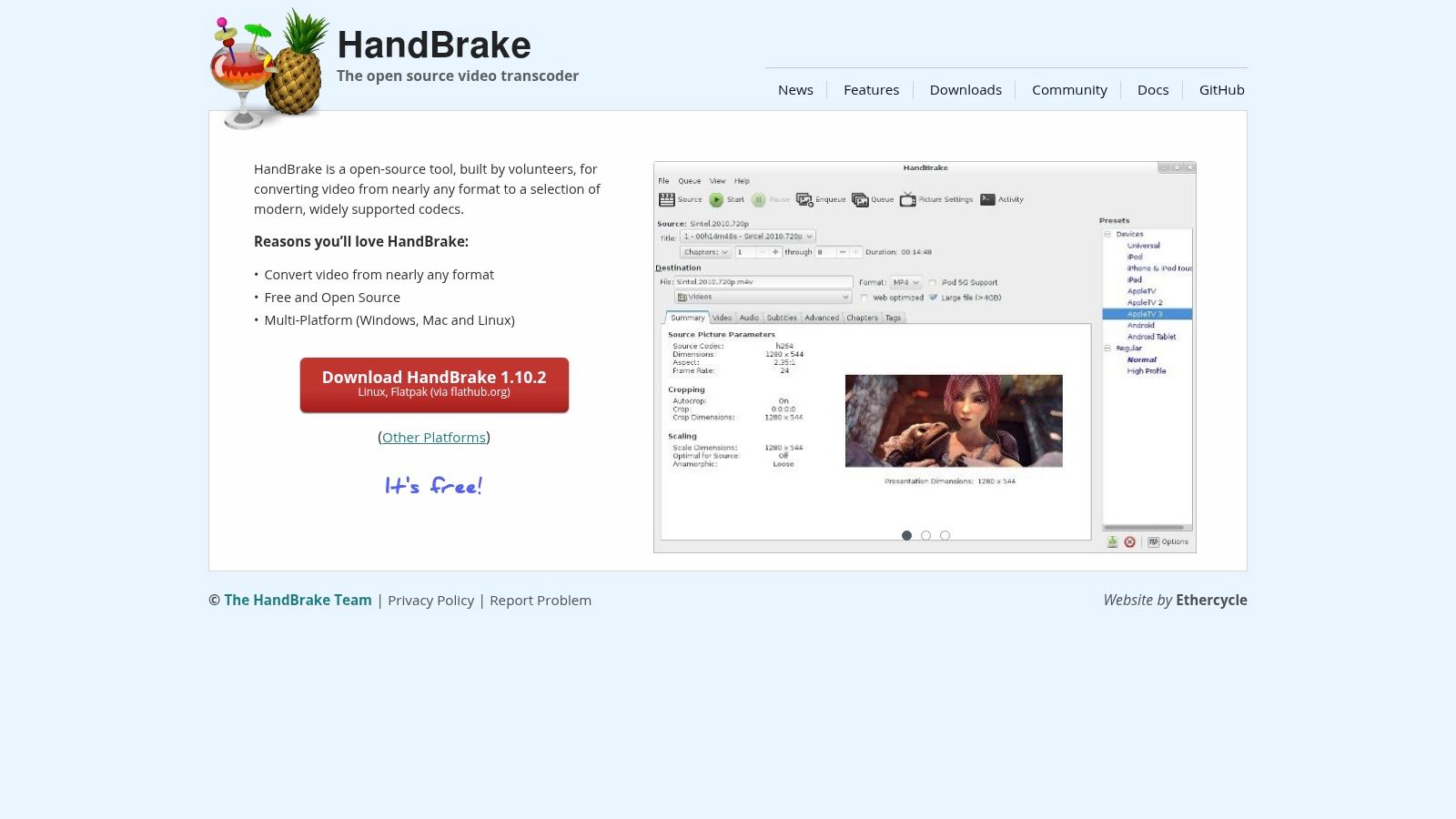
While it utilizes powerful backends, HandBrake’s main advantage is its meticulously crafted presets. These settings are optimized for specific devices, platforms, and quality targets, allowing users to achieve excellent results with just a few clicks. It supports batch processing, enabling the efficient conversion of entire folders of videos, and its active development ensures it incorporates modern codecs like H.265 (HEVC) and AV1.
Key Features and Strengths
HandBrake excels by simplifying sophisticated compression techniques. It prominently features Constant Rate Factor (CRF) or Constant Quality (RF) encoding, which allows users to set a visual quality target rather than a specific bitrate, often producing superior results. This approach prioritizes perceptual quality, ensuring files are as small as possible without noticeable degradation.
- Optimized Presets: A wide range of built-in presets for web, devices (Apple, Android, Roku), and production formats.
- Multi-Platform Support: Native applications are available for Windows, macOS, and Linux, ensuring a consistent experience everywhere.
- Advanced Codec Access: Provides easy access to modern, efficient encoders like H.265 (x265) and AV1 (SVT-AV1), which are crucial for 4K and HDR content. To get a deeper understanding of its most popular high-efficiency codec, you can explore this guide to the HEVC video format.
- Total Cost: Completely free and open-source, supported by a passionate community.
Challenges and Considerations
While HandBrake is incredibly powerful for most transcoding needs, it may lack some of the specialized features required for professional broadcast workflows, such as support for certain professional codecs or captioning formats. Additionally, its official website can occasionally experience downtime, though the application is always reliably available for download from its official GitHub releases page.
Website: https://handbrake.fr/
3. Apple Compressor
For professionals and enthusiasts embedded in the Apple ecosystem, Apple Compressor is the definitive tool for video encoding and compression. It functions as a powerful standalone application and integrates seamlessly with Final Cut Pro, providing a streamlined workflow for converting video into a wide range of professional formats. Its strength lies in leveraging Apple’s hardware, offering blazing-fast, high-quality exports that are optimized for everything from social media to broadcast delivery.
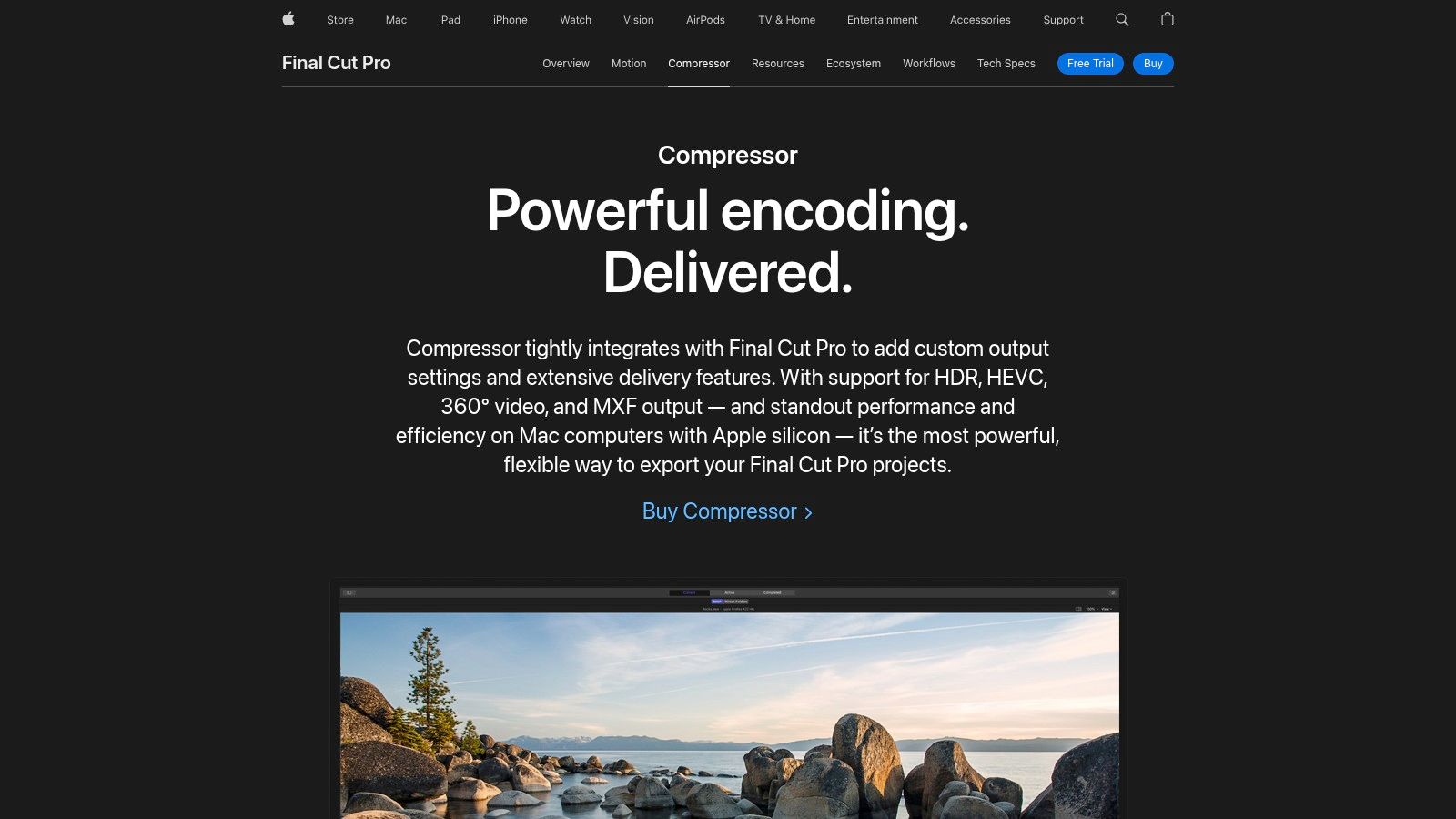
Compressor simplifies the complex task of video encoding with an intuitive interface and a comprehensive set of presets for Apple devices, streaming platforms, and professional formats. Yet, it doesn’t sacrifice control, allowing users to customize every setting to achieve the best compression for video possible within their specific workflow. The application is finely tuned for Apple silicon and Metal, ensuring it fully utilizes the power of modern Mac hardware for accelerated H.264 and HEVC (H.265) encoding.
Key Features and Strengths
Compressor’s primary advantage is its deep integration and hardware optimization within macOS. It can act as a shared encoding engine for multiple users, allowing for distributed processing across a network of Macs to dramatically reduce render times for large projects. This makes it an invaluable tool for collaborative editing environments.
- Deep Final Cut Pro Integration: Send projects directly from the Final Cut Pro timeline for batch processing and encoding without tying up the editor.
- Hardware-Accelerated Encoding: Uses Apple silicon’s Media Engine and Metal to deliver exceptionally fast H.264 and HEVC exports.
- Advanced Format Support: Handles professional needs including MXF wrapping, HDR video (HLG and PQ), 360° VR content, and closed captioning.
- Total Cost: A one-time purchase of $49.99, with no recurring subscription fees.
Challenges and Considerations
The most significant limitation of Compressor is its platform exclusivity; it is only available on macOS. This makes it a non-starter for Windows or Linux-based production pipelines. While it functions as a powerful standalone tool, its full potential is truly unlocked when used in tandem with Final Cut Pro, which may be a consideration for users of other editing software like Adobe Premiere Pro or DaVinci Resolve.
Website: https://www.apple.com/final-cut-pro/compressor/
4. Adobe Media Encoder
For professionals deeply embedded in the Adobe Creative Cloud ecosystem, Adobe Media Encoder is an indispensable tool for outputting high-quality, compressed video. It functions as a powerful, queue-based background encoder that integrates seamlessly with applications like Premiere Pro and After Effects. This integration allows editors and motion graphics artists to export projects directly into a managed queue, enabling them to continue working on other tasks while their files render, a massive workflow efficiency.
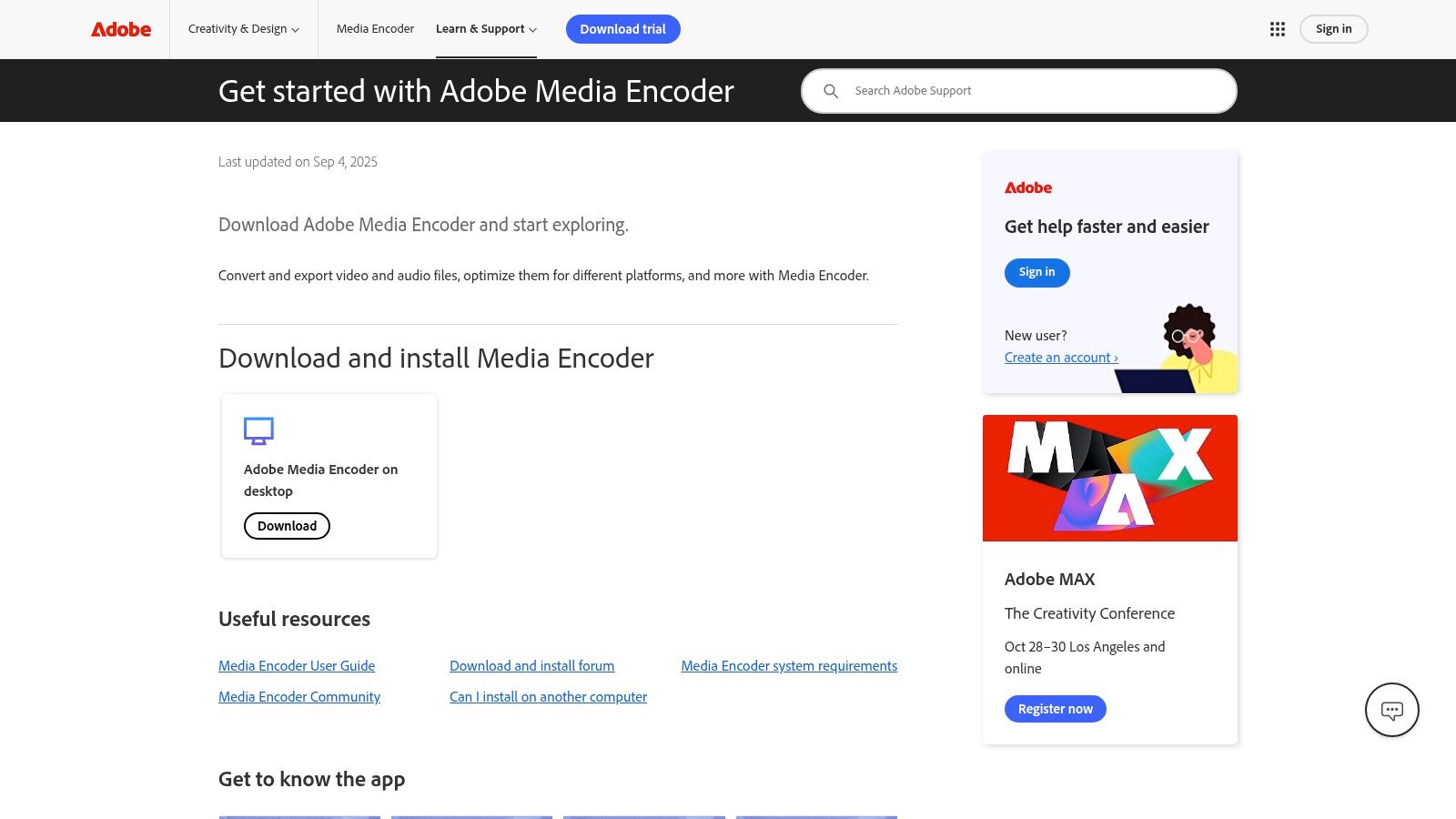
Adobe Media Encoder bridges the gap between complex command-line tools and overly simplistic converters by offering a robust set of presets and detailed manual controls within a user-friendly interface. It supports a vast array of industry-standard codecs and formats, making it a reliable workhorse for broadcast, web, and social media delivery. Its “Watch Folder” feature further automates the compression process, automatically encoding any media files placed into a designated folder, which is ideal for batch processing.
Key Features and Strengths
The primary advantage of Media Encoder is its tight integration, which creates a frictionless workflow for Adobe users. It provides dependable and consistent results, crucial for professional environments where deadlines and quality standards are non-negotiable. For those looking to understand the core process it manages, exploring the concept of what is video transcoding provides excellent foundational knowledge.
- Adobe Ecosystem Integration: Offers seamless, one-click hand-offs from Premiere Pro, After Effects, and other Adobe apps.
- Extensive Preset System: Comes with a huge library of optimized presets for platforms like YouTube, Vimeo, and Twitter, which are also fully customizable.
- Batch Processing and Watch Folders: Automates encoding for multiple files and formats simultaneously, saving significant time.
- Total Cost: Included with a Creative Cloud subscription (starts at $22.99/month for single apps).
Challenges and Considerations
The biggest drawback is its reliance on the Adobe Creative Cloud subscription model; it is not available as a standalone purchase. This makes it a costly option for users who do not need the full suite of Adobe applications. Additionally, as a professional-grade application, its installation footprint is considerably larger than lightweight, single-purpose encoders, which might be a concern for users with limited system resources.
Website: https://helpx.adobe.com/media-encoder/get-started.html
5. DaVinci Resolve Studio
DaVinci Resolve Studio transcends its reputation as a Hollywood-grade color grading suite to offer a complete post-production workflow, including a highly capable “Deliver” page for video encoding. While primarily a non-linear editor (NLE), its advanced export settings and codec support make it a powerful tool for creators seeking the best compression for video directly within their editing environment. This integration eliminates the need for round-tripping to separate encoding software, streamlining the final delivery process.
Unlike dedicated compression tools, Resolve’s strength is its all-in-one nature. A project can be edited, color graded, have visual effects applied, audio mixed, and then directly exported using professional codecs like H.264, H.265, ProRes, and DNxHD. The paid Studio version further enhances this by adding powerful AI-driven features like noise reduction and support for higher bit depths and frame rates, which can improve the quality of the source video before compression even begins.
Key Features and Strengths
Resolve’s Deliver page provides extensive control over export parameters, with a balance of user-friendly presets and customizable options. Users can manually set bitrates, keyframes, and encoding profiles, ensuring the final output is optimized for its intended platform, whether it’s YouTube, Vimeo, or broadcast television. The ability to batch export multiple versions of a timeline with different settings is a significant time-saver for professional workflows.
- Integrated Workflow: Edit, grade, and compress within a single application, maintaining maximum quality.
- Broad Codec Support: Native encoding for industry-standard delivery and intermediate codecs.
- Studio Version Enhancements: The paid version includes AI-powered tools and hardware-accelerated encoding for H.264 and H.265, drastically reducing render times.
- Total Cost: A robust free version is available; the Studio version is a one-time purchase of $295, with no subscription fees.
Challenges and Considerations
As a comprehensive post-production suite, DaVinci Resolve has a steep learning curve, particularly for users only interested in its compression features. The interface can be overwhelming for beginners. Additionally, the Mac App Store version has certain limitations compared to the version downloaded directly from Blackmagic Design, such as reduced codec support due to sandboxing restrictions.
Website: https://www.blackmagicdesign.com/products/davinciresolve
6. AWS Elemental MediaConvert
For businesses operating at scale, AWS Elemental MediaConvert is a broadcast-grade, cloud-based transcoding service that offers unparalleled power and reliability. Instead of a desktop application, it’s a fully managed service within the Amazon Web Services ecosystem, designed for on-demand video (VOD) asset preparation. It allows content providers to transcode massive libraries of video for any viewing device, making it a cornerstone for achieving the best compression for video in professional, high-volume workflows.
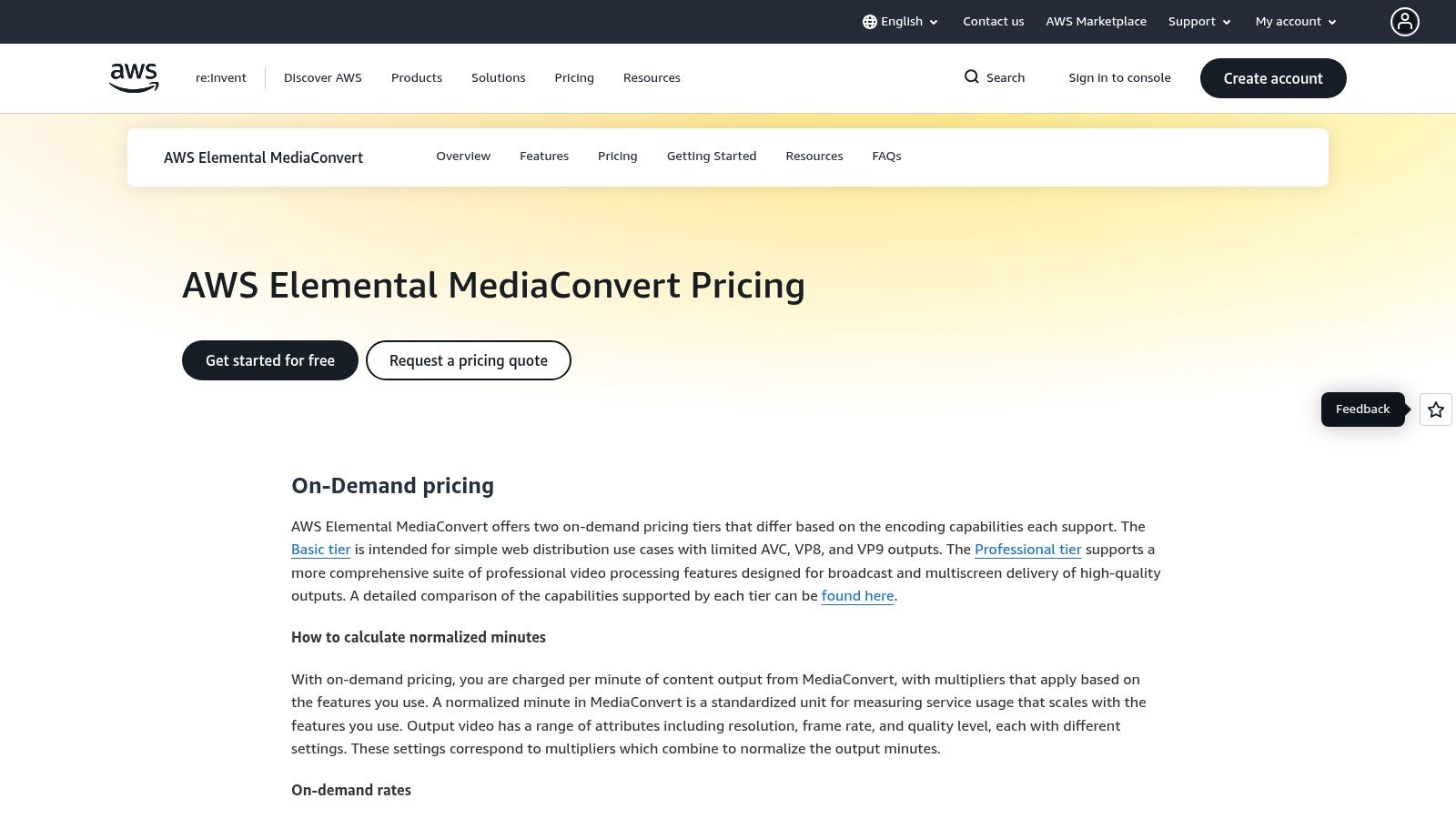
As a serverless solution, MediaConvert eliminates the need to manage infrastructure, automatically scaling resources to match the workload. This pay-as-you-go model is ideal for enterprises, broadcasters, and OTT platforms that need to process large batches of content efficiently without the overhead of maintaining their own encoding farms. Its deep integration with services like Amazon S3, AWS Lambda, and Amazon CloudFront enables fully automated, end-to-end media pipelines.
Key Features and Strengths
The primary advantage of MediaConvert is its elastic scalability and broadcast-quality feature set, previously only available through high-cost hardware. It supports a vast range of professional codecs and features like multi-track audio, captions, and advanced quality-defined variable bitrate (QVBR) control. This helps optimize file size while consistently maintaining a target perceptual quality level.
- Broadcast-Grade Features: Supports professional codecs (ProRes, XAVC), HDR (Dolby Vision, HDR10+), forensic watermarking, and multi-track audio processing.
- Elastic Scalability: Automatically provisions and scales transcoding resources, handling jobs with massive parallel processing capabilities without manual intervention.
- Deep AWS Integration: Seamlessly works with S3 for storage, Lambda for event-driven automation, and CloudFront for content delivery.
- Total Cost: Pay-as-you-go per-minute pricing based on resolution and codec, with significant volume discounts available.
Challenges and Considerations
The service’s greatest strength, its integration with AWS, is also its biggest hurdle for newcomers. Setting up a transcoding job requires familiarity with the AWS Management Console, IAM roles for permissions, and S3 bucket policies. The cost model, while transparent, can become complex as additional fees for storage (S3), data transfer, and other integrated services may apply. This makes it less suitable for casual users or small one-off projects.
Website: https://aws.amazon.com/mediaconvert/pricing
7. Bitmovin Encoding
Bitmovin Encoding offers a developer-centric, cloud-native API for high-performance video processing, targeting businesses and media companies that require scalability and top-tier quality. As an enterprise-grade platform, it provides sophisticated tools to achieve the best compression for video through advanced features like per-title encoding, multi-pass optimization, and support for next-generation codecs. Its API-first approach allows for seamless integration into complex media workflows.
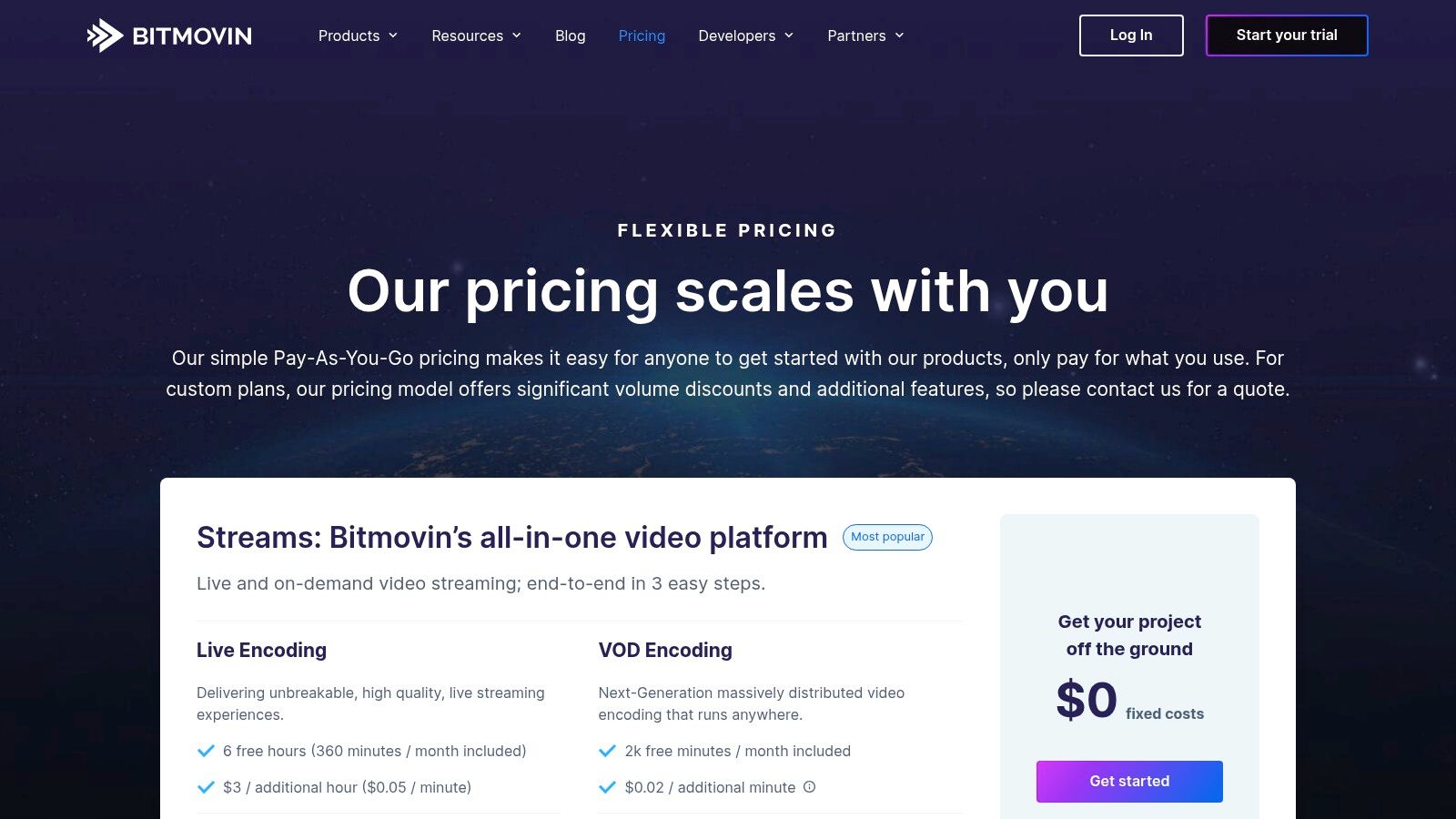
Unlike simple file converters, Bitmovin is designed for automated, high-volume transcoding jobs where efficiency and output quality are paramount. It empowers developers to define intricate encoding profiles using JSON configurations, enabling granular control over every parameter. The platform also offers flexible deployment models, allowing users to run encoding jobs within Bitmovin’s managed cloud or their own private cloud infrastructure (AWS, Azure, GCP).
Key Features and Strengths
Bitmovin’s primary advantage is its ability to deliver exceptional visual quality at optimized bitrates, powered by cutting-edge technology. Its per-title encoding feature analyzes each video’s complexity to create a custom encoding ladder, ensuring no bits are wasted. This results in significant storage and delivery cost savings without compromising the viewer experience.
- Next-Gen Codec Support: Provides production-ready encoders for AV1, H.265 (HEVC), and the emerging VVC (H.266), alongside traditional codecs.
- Flexible Deployment: Run jobs on Bitmovin’s managed cloud or deploy the encoding engine in your own cloud account for greater data control.
- Advanced Optimization: Features multi-pass encoding and per-title analysis to maximize compression efficiency for every individual asset.
- Total Cost: Pay-as-you-go pricing with a generous free tier of 20GB of encoding output per month. Enterprise plans are available for high-volume needs.
Challenges and Considerations
The platform’s power comes from its API, making it best suited for development teams comfortable with programmatic workflows and JSON configurations. While it offers excellent documentation and preset profiles, it lacks a simple graphical user interface for drag-and-drop file conversion. For large-scale operations, costs can escalate without careful profile optimization, so understanding encoding parameters is key to maximizing its value.
Website: https://bitmovin.com/pricing/
Top 7 Video Compression Tools Comparison
| Encoder | Implementation Complexity 🔄 | Resource Requirements ⚡ | Expected Outcomes 📊 | Ideal Use Cases 💡 | Key Advantages ⭐ |
|---|---|---|---|---|---|
| FFmpeg | High CLI learning curve; no GUI | Efficient; leverages hardware acceleration | Best compression quality and flexibility | Advanced users needing maximum control and automation | Free, cross-platform, largest codec/filter support |
| HandBrake | Low; GUI with presets | Moderate; desktop-based | High-quality compression with presets | Content creators wanting easy batch compression | User-friendly, free, well-documented |
| Apple Compressor | Moderate; simple UI but macOS only | Optimized for Apple silicon and Metal | Fast hardware-accelerated encoding | Mac users integrated with Final Cut Pro | Hardware acceleration, Mac-optimized workflows |
| Adobe Media Encoder | Moderate; integrated with Adobe apps | Heavier install, subscription-based | Reliable broadcast/web delivery | Adobe Creative Cloud users for professional pipelines | Seamless Adobe ecosystem workflow, wide format support |
| DaVinci Resolve Studio | High; complex NLE with encoding features | High resource use for editing + encoding | Comprehensive encoding & color grading | Professionals needing NLE plus encoding | Perpetual license, powerful codec support |
| AWS Elemental MediaConvert | Moderate; cloud setup and AWS knowledge required | Scales elastically in cloud | Broadcast-grade, scalable transcoding | OTT/VOD workflows with variable demand | No infra management, pay-as-you-go, AWS integration |
| Bitmovin Encoding | Moderate to high; API-first with JSON config | Cloud-based, scalable | High visual quality & speed | Developers needing granular control and multi-cloud | Modern codecs, per-title optimization, flexible pricing |
Choosing Your Ideal Compression Workflow
The journey to find the best compression for video reveals a crucial truth: there is no single “best” solution, only the best workflow for your specific project. As we’ve explored, the landscape is diverse, spanning from command-line powerhouses to sophisticated cloud platforms. The choice isn’t just about codecs like H.265 or AV1; it’s about selecting a tool that aligns with your technical comfort, production scale, and distribution goals.
Your decision hinges on balancing control, convenience, and cost. For developers and technical teams who demand granular control over every encoding parameter, FFmpeg remains the undisputed, open-source champion. It’s the engine behind many other tools, offering unparalleled flexibility for custom scripts and automated pipelines. On the other end of the spectrum, content creators seeking a straightforward yet powerful desktop application will find HandBrake to be an invaluable, free resource for everyday compression tasks.
Matching the Tool to Your Ecosystem
For professionals embedded in specific creative ecosystems, integration is key. Apple Compressor and Adobe Media Encoder offer seamless workflows for those using Final Cut Pro and the Adobe Creative Cloud suite, respectively. Their strength lies in minimizing friction, allowing you to export and compress directly from your editing timeline with presets optimized for various platforms. Similarly, post-production professionals using DaVinci Resolve Studio can leverage its powerful, integrated encoding capabilities without ever leaving the application.
Ultimately, the right choice boils down to a few key questions:
- Who is doing the encoding? A developer will gravitate towards FFmpeg or an API, while a video editor will prefer a GUI-based tool like Media Encoder.
- What is your scale? Compressing a few videos a week is a job for HandBrake or Compressor. Encoding thousands of files requires the power of a cloud service.
- Where is your audience? If you’re streaming to a global audience on diverse devices, a cloud solution like AWS Elemental MediaConvert or Bitmovin Encoding provides the adaptive bitrate streaming and DRM capabilities you need to deliver a flawless experience.
Planning Your Next Steps
The most important takeaway is that your compression strategy should be an active choice, not an afterthought. Start by identifying your primary use case. Are you archiving footage, delivering content for a streaming platform, or optimizing videos for a corporate website? Once you have a clear goal, use the insights from this guide to select one or two tools to test.
Run A/B tests with different codecs and settings. Compare a high-bitrate H.264 file with a more efficient H.265 or AV1 encode. Evaluate not just the file size but the perceptual quality on your target devices. This hands-on approach is the only way to build a compression workflow that truly serves your needs, ensuring your video content is both high-quality and efficiently delivered every time.
Ready to build a powerful, scalable video workflow without the complexity of managing your own encoding infrastructure? LiveAPI provides a robust, developer-first API that handles everything from ingestion and transcoding to delivery. Integrate the best compression for video directly into your application and focus on creating amazing user experiences. Learn more at LiveAPI.